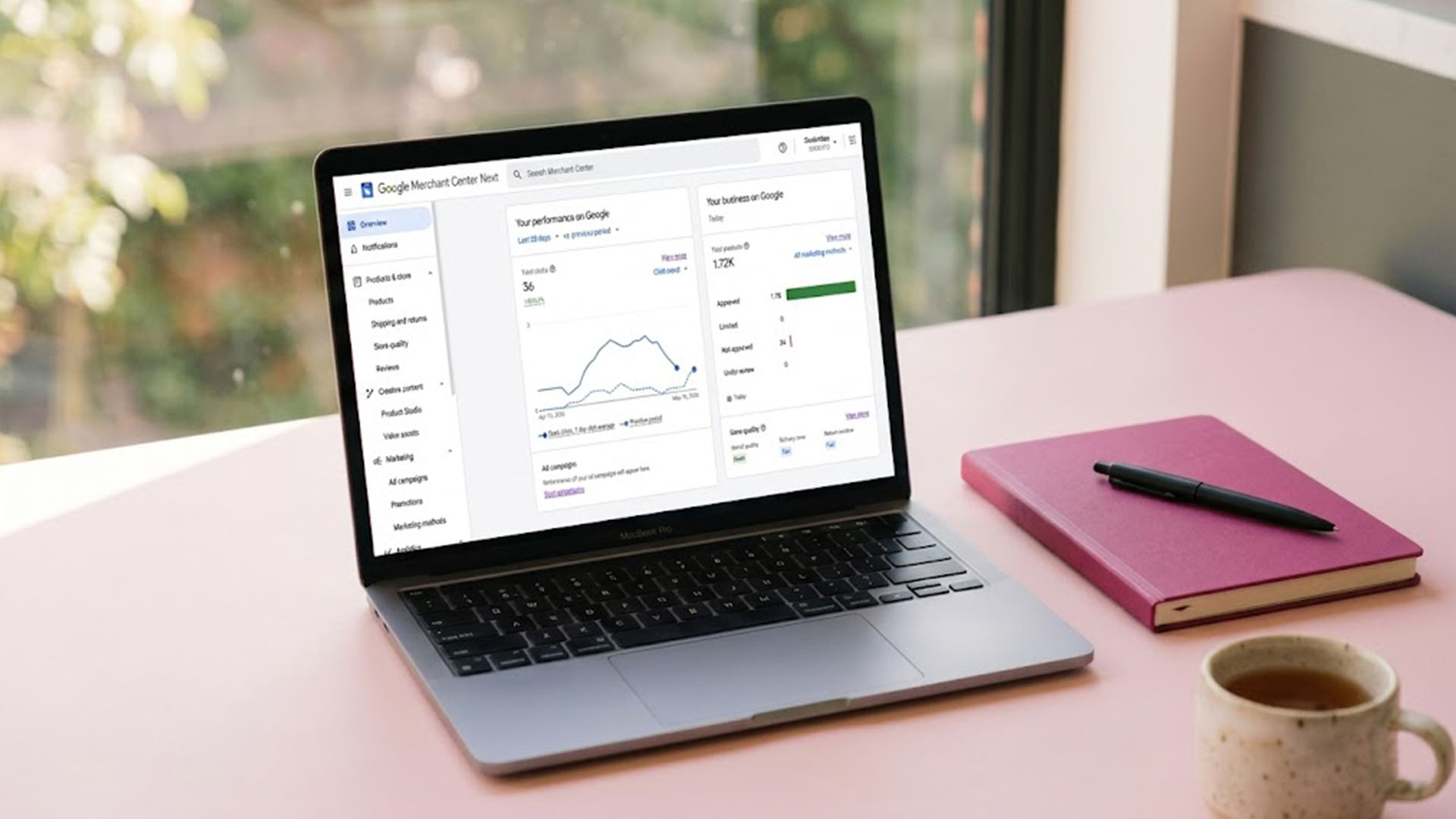
You've launched your Shopify store, written your product descriptions, and added your first collections. Now someone in a Facebook group tells you to "set up Google Merchant Center for free listings," and you have no idea what that means or where to start.
Here's the short version: Google Merchant Center is the place where Shopify and Google talk to each other about your products. Once you connect them, your products can show up across Google Search, Images, the Shopping tab, YouTube, Google Lens, and Gemini, for free. No ad spend required. Google calls these "free listings", and they're available in the United States, Canada, the UK, Australia, Brazil, Japan, Mexico, India, and a growing list of countries.
The setup itself takes about 30 minutes. Getting through approval without your account being suspended for "Misrepresentation" is the harder part. This guide walks you through the full google merchant center shopify setup, then tells you exactly what to fix when (not if) something gets disapproved. Written for solo founders under six months in, who'd rather not read seven other guides to find the one thing that actually mattered.
What Google Merchant Center actually is
Google Merchant Center is a free Google product. It holds your store's product feed (titles, prices, images, availability, shipping) and pushes that data to every Google surface where products can appear. Think of it as the warehouse Google reads from. Your Shopify admin is where you stock the warehouse.
Two things get confused all the time, so let's pull them apart.
Google Shopping ads are paid. You set a daily budget, Google charges per click, and your products appear in the sponsored slots at the top of search results. This is Google Ads.
Free product listings are unpaid. Shopify confirms that for eligible stores, products synced through the Google & YouTube channel can appear across Google for free. Same product feed, same Merchant Center account. Just no ad spend.
For a brand-new Shopify store, free listings are the right place to start. They won't drive Amazon-scale traffic in week one, but they cost nothing and they compound. Some merchants report free listings driving 20% to 30% of their total Google traffic once feeds are well-optimized. The work below is what gets you there.
Before you start: three things to have ready
You can spend an hour clicking through setup screens and find out at the end that you were missing one piece. Avoid that by having these three things in place first.
A connected custom domain. Google won't index a store still sitting on a .myshopify.com subdomain. Connect your custom domain in Shopify before starting, and confirm it's the primary domain.
Real policy pages. Shipping policy, return and refund policy, privacy policy, contact information, and an About page that mentions a real person or company. Empty placeholder pages are the single fastest way to get suspended for Misrepresentation. More on that below.
A Google account. Use your business email, not a personal Gmail you share with your partner. You'll receive critical notifications here, and switching accounts later is annoying.
One more setting Shopify owners miss: your general shipping profile needs at least one shipping rate set up for the country you want to sell to. Custom shipping profiles don't sync correctly. Check Settings > Shipping and delivery in your Shopify admin before continuing.
The Google Merchant Center Shopify setup, step by step
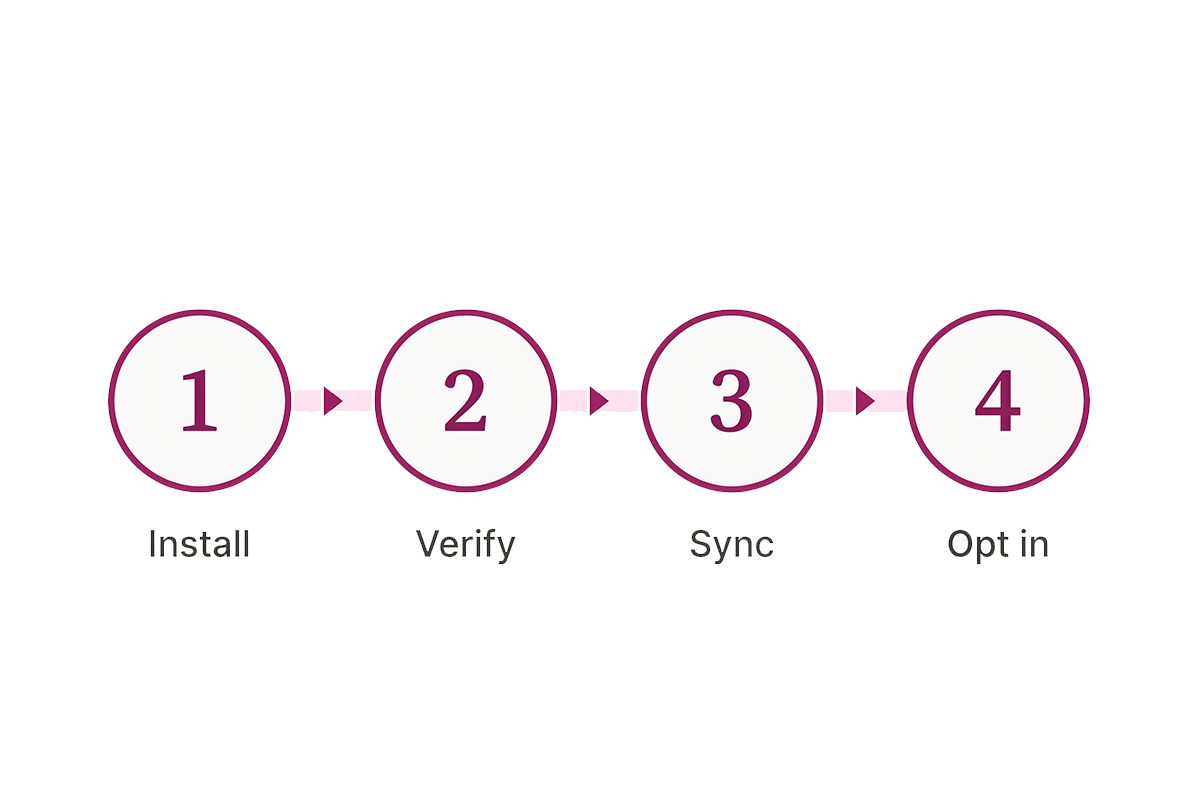
Same four-step flow Shopify and Google have used since 2024, when Merchant Center Next replaced the older interface. Install, verify, sync, opt in.
Step 1: Install the Google & YouTube channel
From your Shopify admin, go to Sales channels in the left sidebar. Click the "+" next to "Sales channels," find "Google & YouTube," and click Add channel. The app is free, made by Google, and is the official way Shopify products sync to Merchant Center.
Once installed, you'll be prompted to connect a Google account. Use the business email mentioned earlier. If you already have a Merchant Center account, you can connect it. If you don't, the app will create one for you in the background, which is the easier path for new stores.
Step 2: Verify and claim your store URL
Google needs to confirm you own the domain you're listing products from. When you set up through the Google & YouTube channel, verification usually happens automatically. You'll see a green checkmark next to your domain in the Merchant Center settings.
If automatic verification fails (this happens to maybe one in ten stores), Google will ask you to verify manually with a meta tag, HTML file, or Google Tag Manager. The meta tag route is easiest: copy the tag Google gives you, paste it into your Shopify theme's theme.liquid file just before the closing </head> tag, and click Verify in Merchant Center.
Step 3: Sync your product feed
This is where Shopify pushes your product data to Merchant Center. Once the channel is connected and your domain is verified, sync usually starts automatically. In the Google & YouTube channel overview, you'll see a Product status section that shows how many products are syncing, approved, pending, or disapproved.
First-time sync can take 24 to 72 hours. Some products will likely be flagged in that window. Don't panic. Most of the flags are fixable in 5 minutes once you know which one you're looking at.
Step 4: Confirm you are opted in to free listings
If you set up Merchant Center through the Google & YouTube channel, Google's documentation confirms you're automatically opted in to show products for free across Google. But it's worth double-checking, because some store owners get surprised later when they assume they're listed and they aren't.
In Merchant Center, click the gear icon, go to Data sources, and confirm that "Free listings" appears as a destination on your product data source. If it's missing, click the pencil icon next to Marketing methods and add it.
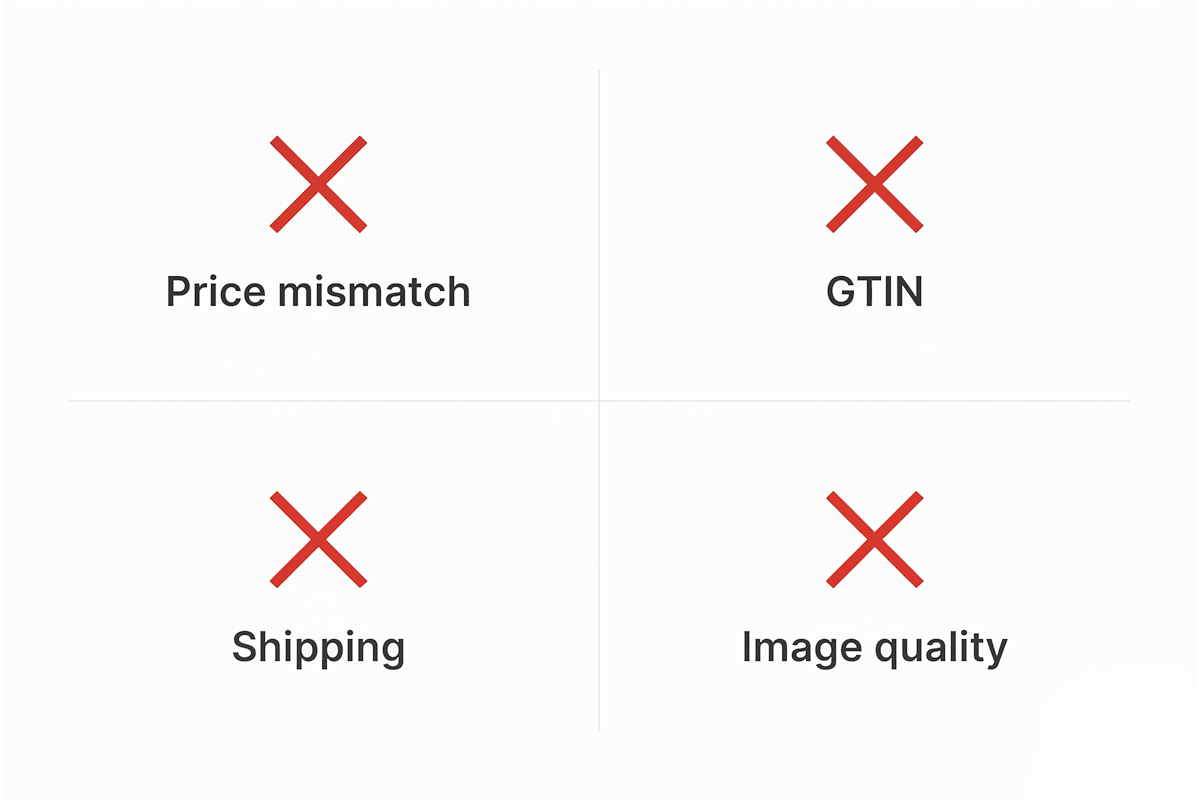
The four errors that disapprove most new Shopify stores
Almost every new Shopify store hits the same wall on first sync. Some products approve, some get flagged. Here are the four most common errors, in the order they usually appear in your Diagnostics tab.
Price mismatches
The single most common Shopify-specific error. Merchant Center crawls your live product page, compares the price it finds against the price in your feed, and disapproves the product if they don't match. Even a 1-cent difference will do it.
Three usual causes. First, you set a sale price in Shopify but the feed sent the original price (or vice versa). Second, you ship to multiple countries and your Shopify market settings show one price while your feed targets another. Third, your theme has structured data conflicting with the feed, which happens more often with variant pricing.
The fix: keep automatic feed updates enabled in the Google & YouTube app. If the error persists, manually re-sync the affected product from the bulk editor. If a specific variant is still mismatched, your theme's product schema may need editing or removing.
GTIN issues (and the custom product workaround)
GTIN stands for Global Trade Item Number. It's the barcode that comes with mass-manufactured products. If your product has a barcode, you must add it to the variant's Barcode field in Shopify, and Google will validate it against the GS1 database.
What about custom or handmade products that don't have a GTIN? Google's policy is clear: art, handmade goods, and other custom items don't need a GTIN, but you must mark them as custom. The path in Shopify: Sales channels > Google & YouTube > Product feed > Manage Products, then set "Custom product" to True for the relevant products. Save.
For manufactured products without a barcode, you'll need to add a Manufacturer Part Number (MPN) and a brand in the Vendor field. Without one of these three (GTIN, custom product flag, or MPN plus brand), the product is disapproved or limited.
Shipping and tax not configured
Since June 2023, Google requires shipping cost on all free listings and ads in many countries. If your Shopify shipping settings don't import cleanly, products are flagged.
The fix: in the Google & YouTube channel, go to Settings > Shipping settings and choose "Automatically import settings" from your Shopify general shipping profile. If you sell internationally and your shipping isn't configured for a specific country, products targeting that country will fail. Sell only to countries where your shipping is actually set up.
For tax, US sellers need to indicate state-level tax rates. Most other countries handle this automatically through Shopify Markets.
Image quality and promotional overlays
Google rejects product images with promotional text ("50% OFF" badges), watermarks, logos overlapping the product, or generic placeholder graphics. Apparel images must be at least 250 x 250 pixels. Other categories need at least 100 x 100. Both are minimums you'll blow past with normal product photography, but stores using small thumbnails or compressed images get flagged.
The fix: use your highest-resolution image as the featured image. Strip any text, sale badges, or watermarks. If you've been adding promo overlays in Canva, save a clean version for the product feed and use the promo version only for marketing posts.
How to avoid the Misrepresentation suspension
This is the section every other setup guide skips. It shouldn't, because it's the single most likely reason a new Shopify store will spend two weeks in setup and end up suspended with no path back.
Misrepresentation is Google's catch-all suspension reason for stores that "look untrustworthy." It triggers when Google can't verify who's behind the store, when policies are missing or vague, when the contact information looks fake, or when the store pattern matches stores Google has previously identified as scams. New stores get hit disproportionately because they lack the trust signals (age, traffic, reviews) that protect established stores.
The frustrating part: Google doesn't tell you which specific thing failed. So you fix everything you can, then request a review.
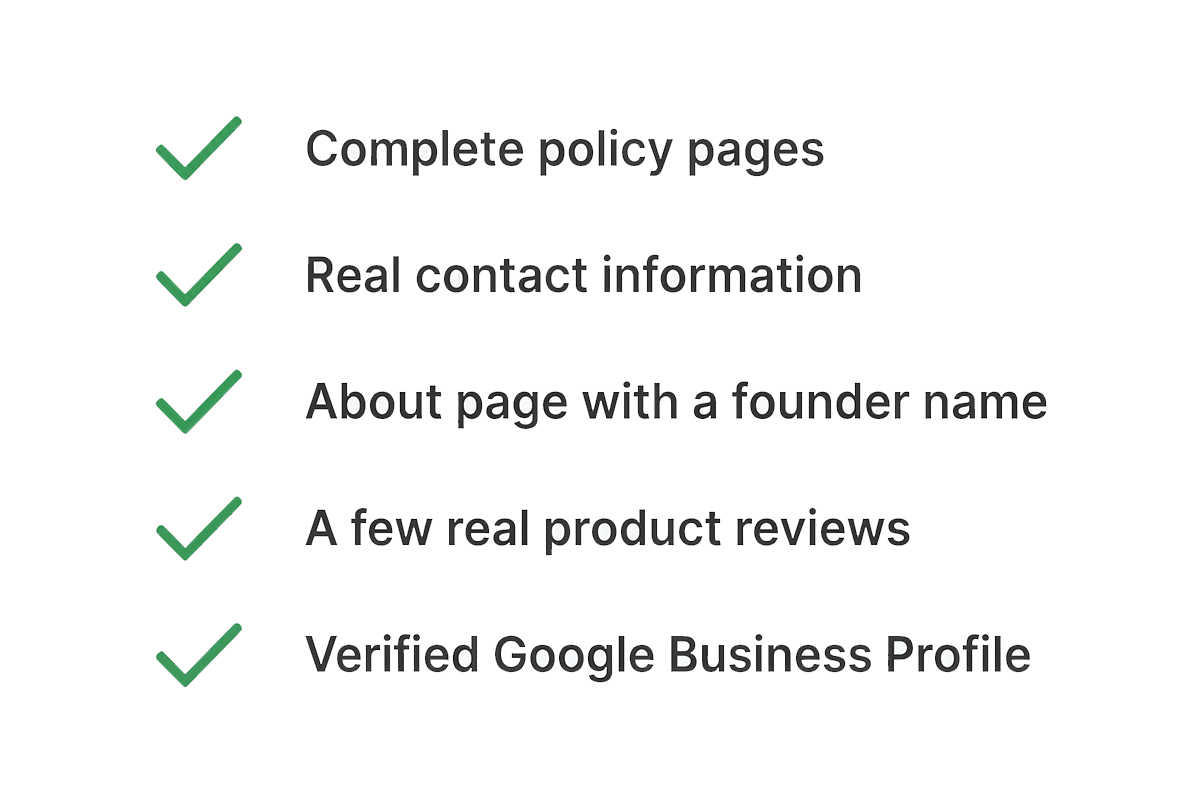
The trust signals that actually move the needle, based on community threads where stores got reinstated:
Complete policy pages. Shipping policy with real timeframes and costs, return and refund policy with a real return window, privacy policy, and terms of service. Don't use Shopify's default templates without filling in the variables. Empty policies (or policies that say "TBD") trigger Misrepresentation faster than no policies at all.
Real, visible contact information. A contact email on a custom domain (not Gmail). A real physical address or at least a city or region. A contact form that actually works. Phone number is optional but helpful.
An About page that mentions a person. Not "About Us: We are passionate about quality." A founder name, a brief story, and a photo if possible. Stores with anonymous About pages get flagged more often than stores with a human face.
A few real reviews on product pages. Even five reviews on your top-selling product is significantly better than zero. If you don't have reviews yet, the long-term solution is automated reviews management after every order. Short-term, ask your first ten customers manually.
A verified Google Business Profile. Optional but it adds a credibility layer that helps Merchant Center connect your business identity to a real entity.
If you're still suspended after fixing all of the above, request a review from Merchant Center and wait 7 days. Don't request multiple reviews back to back. Google flags accounts that do this as more suspicious, not less.
What free listings traffic actually looks like in month one
Manage expectations early or you'll quit at week three. Here's the realistic pattern for a brand-new Shopify store with 30 to 80 products.
Week 1. Setup, sync, first round of disapprovals. Plan to spend 2 to 3 hours fixing the four errors above. Maybe 60% of your products are approved by end of week 1.
Weeks 2 to 4. The remaining 40% either get approved after fixes or stay disapproved for reasons that take longer to diagnose. You may see 5 to 50 impressions per day in Merchant Center reporting. Most of those won't convert. That's normal.
Month 2. If your feed quality is solid and your products match real search intent, you start seeing clicks. Maybe 1 to 5 per day. Conversion will lag rankings by another month.
Months 3 to 6. The compounding starts. Stores that stay consistent with feed quality and don't trigger new disapprovals usually see meaningful free listings traffic by month 4. The stores that quit at month 1 never find out.
Free listings won't replace SEO, content, or paid ads. They're one channel that compounds quietly in the background when the feed is right. The Shopify SEO checklist for new stores handles the on-page foundation; Merchant Center handles the product-data layer that on-page SEO can't reach.
Wrapping up
Setting up google merchant center shopify isn't complicated. The official channel, automatic verification, automatic shipping import, and automatic free-listings opt-in handle most of the work. What's harder is staying out of the suspension queue and fixing the four feed errors that almost every new store hits.
The order to follow: install and sync first, then fix the disapprovals as they appear, then harden the trust signals on your store before any Misrepresentation review hits. Most cheap SEO services skip Merchant Center entirely because it's not part of the template they run. That means it's also one of the cleanest organic channels available to a solo Shopify owner who's willing to spend a weekend on it.
Once the feed is approved and clean, the work shifts to maintenance. Check Diagnostics weekly. Keep prices and stock synced. Add new products to the channel as you launch them. Free listings are a slow channel, but the floor is "I never paid Google a cent and they sent me traffic anyway." That floor isn't bad.
Want this set up properly without the suspension surprise?
Google Merchant Center optimization is included in every Studio Niza SEO tier, alongside custom keyword research, real schema, internal linking, and indexing follow-up. Pricing starts at $499 one-time for 25 pages.
See SEO pricing & scope →Or email contact@studioniza.com if you have a specific question about your store. I read every one.
Frequently asked questions
If you're still unsure after reading these, just send the question.
Is Google Merchant Center free for Shopify stores? +
Yes. Google Merchant Center itself is a free Google product, and the Google & YouTube channel in Shopify is also free to install. Free product listings across Google Search, Images, the Shopping tab, Lens, and Gemini cost nothing. The only thing you'd pay for is Google Shopping ads, which are a separate paid program you don't have to use.
Do I need Google Ads to use Google Merchant Center? +
No. Google Ads and free product listings are separate programs that share the same Merchant Center account. You can run free listings without ever creating a Google Ads account or spending a dollar. Many new Shopify stores start with free listings only and add paid ads months later when they have feed data to optimize against.
How long does it take to get approved on Google Merchant Center? +
For most new Shopify stores, initial sync and product review take 24 to 72 hours, with the first round of disapprovals visible within a week. Stores that hit the Misrepresentation suspension can take 2 to 4 weeks to recover after fixing trust signals and requesting a review. Plan for a full month before your google merchant center shopify setup is fully approved and stable.
Why does my Shopify product feed keep getting price mismatch errors? +
Three common causes. Your sale price changed but the feed hasn't re-synced. Your theme's structured data shows a different price than the feed at the variant level. Or your Shopify market settings are pushing one currency while Merchant Center is reading another. Enable automatic feed updates in the Google & YouTube app first, then check variant-level prices on the affected products.
Do I need a GTIN if I make my products myself? +
No. Custom-made products, handmade goods, original art, and one-of-a-kind items don't need a GTIN. You do need to mark them as custom in the Google & YouTube channel: Sales channels > Google & YouTube > Manage Products, then set "Custom product" to True. Without this flag, Google assumes the GTIN is missing and disapproves the product.
Which countries can use Google free product listings? +
Free listings are available in the United States, Canada, the United Kingdom, Australia, Brazil, Japan, Mexico, India, Argentina, Chile, Colombia, South Africa, and a growing list of European and Asian countries. The Shopping tab is available across most of these. For the current list, check Google's official free listings documentation, since Google adds new countries regularly.