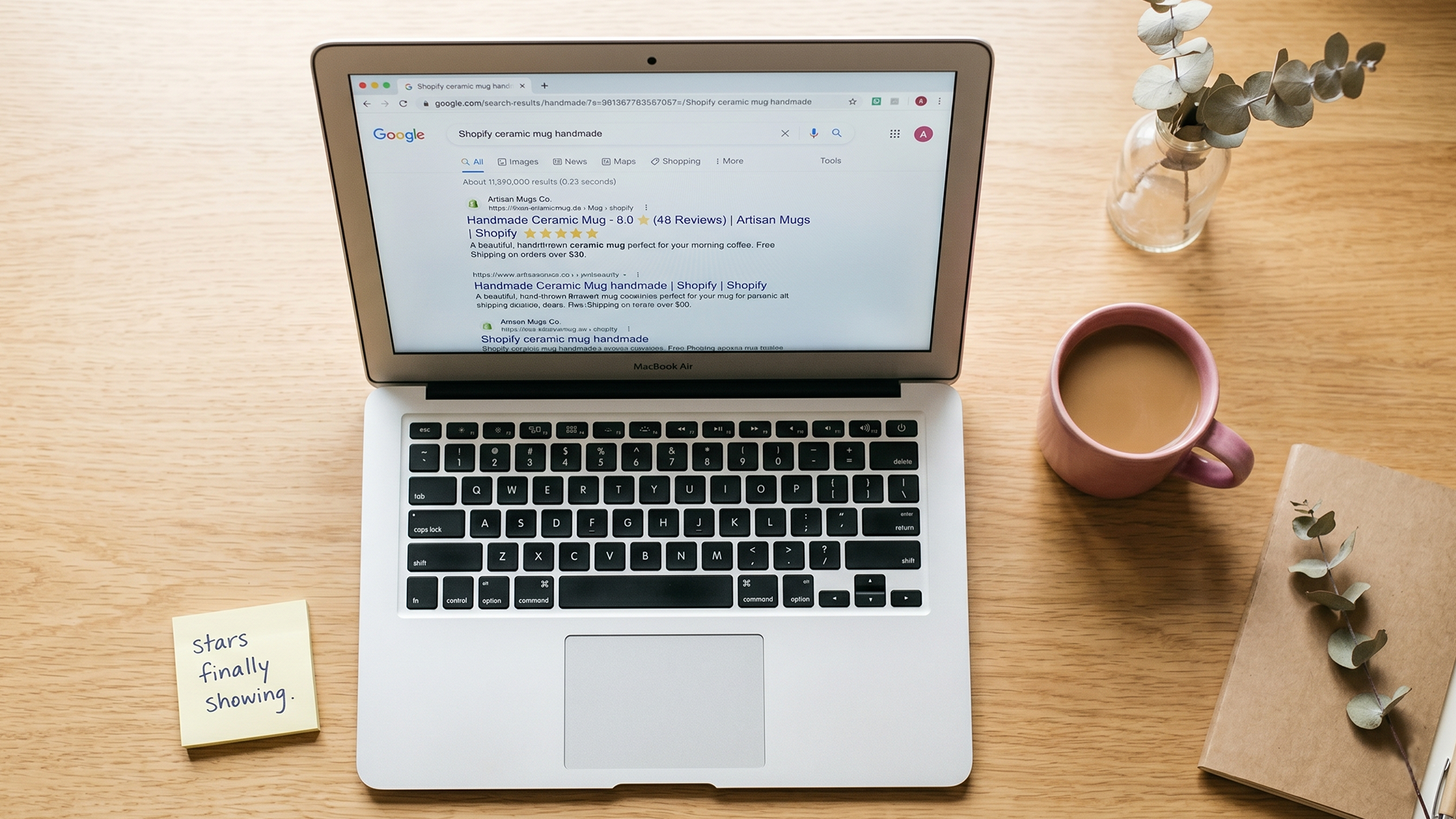
You've spent months asking customers for reviews. The widget on your product page shows a tidy 4.8 average across 47 reviews. You search your product on Google and the listing shows up. No stars. No rating. No review count. Just a plain blue link, the same as every other store on the page.
This is the gap most Shopify owners notice around month six. The reviews exist. The reviews are visible on the product page. They just aren't being read by Google in the way that produces a star snippet in search results. That snippet, the row of yellow stars under a product listing, is the single highest-CTR rich result on the SERP. Losing it means you're competing against listings that have visual proof of trust while yours has none.
Getting your Shopify reviews on Google as star ratings comes down to three things: valid Product schema that includes an aggregateRating field, enough reviews on the product to clear Google's threshold, and a theme that doesn't silently break the markup when it changes. This post walks through each, what to check, and how to validate the fix in 10 minutes using a free Google tool.
What Google star ratings actually are (and why they matter)
Star ratings in Google search results are a type of review snippet, sometimes called a rich snippet or rich result. They display directly under the page title in the SERP, showing an average rating and a review count.
Google doesn't generate them from your reviews directly. It generates them from structured data on your product page that tells Google, in machine-readable form, "this product has an average rating of 4.8 across 47 reviews, and here is the underlying review markup that backs that number." That structured data is called schema markup, and the format Google recommends is AggregateRating nested inside Product schema, delivered as JSON-LD in the page head.
Why they matter for a small Shopify store
Star snippets don't move your ranking position. They move your click-through rate at whatever position you already hold. Schema markup drives 20 to 40 percent higher click-through rates on average for pages that earn rich snippets. For a Shopify store at position 5 on a competitive product query, that's the difference between getting clicked or being skipped.
For new Shopify stores in particular, the visual proof matters more than for established brands. A buyer searching "ceramic coffee mug" doesn't know your store yet. The stars are the first signal that other people have bought from you and lived to talk about it. No stars in 2026 reads like a brand-new store with no history, even when you've been live for a year and have 200 happy customers.
Reviews collected vs reviews displayed: why they aren't the same
This is the part that surprises most store owners. The review count in your app's dashboard is a count of reviews collected. The star snippet in Google is a function of reviews displayed on the product page in a way Google can parse, with the right schema in place, on a page Google has recently recrawled.
You can have 200 reviews sitting in your Judge.me dashboard and zero star snippets in Google if any of the following are true:
The reviews exist in the app backend but aren't rendered on the product page. This happens when a review widget is installed but the storefront placement was never wired in, or the widget was removed when the theme changed.
The reviews render visually but the JSON-LD aggregateRating field is empty or missing. Google reads the JSON-LD, not the visible star widget. If the widget shows 4.8 stars but the schema field says zero or null, no snippet.
The schema is valid but the page hasn't been recrawled since the markup was fixed. Google needs to see the updated page before it can promote the listing to a rich result. Typical recrawl window: a few days to four weeks.
The mental model worth carrying: visible to the customer and visible to Google are two different systems. The widget is for the customer. The schema is for Google. Both have to be working at the same time, on the same page.
Three reasons your Shopify star ratings aren't showing
After auditing dozens of Shopify stores, these are the three causes that explain almost every missing-star case. They are listed in order of how often I see them.
1. The review app's schema isn't wired into your product page
Most modern Shopify themes ship with basic Product schema. What they don't ship with is the aggregateRating field populated, because that data lives in your review app, not in the theme. The review app is supposed to inject its own JSON-LD on the product page, either replacing the theme's empty Product block or merging into it.
When the app is misconfigured, or when the theme has its own Product JSON-LD that the app can't override, you end up with two competing schema blocks: one from the theme with no ratings, and one from the app. Google sometimes reads the wrong one. Sometimes it reads both and flags a conflict. Either way, no snippet.
2. Your theme changed and the review widget didn't follow
You changed your Shopify theme. The new theme's product page template doesn't include the same review widget hooks, or the schema isn't wired into the new layout. The reviews still exist in your review app's backend, but they no longer display on the product page. Rich snippets disappear within a recrawl cycle, typically two to four weeks.
This one is sneaky because the dashboard still shows the reviews. The product page still shows the star icon (if the theme's default star icon is part of the new template). Only when you View Source or run the Rich Results Test do you see that the schema is gone.
3. You don't have enough reviews on the product yet
Google has a minimum-review threshold for showing star snippets, and it doesn't publish the exact number. In practice, snippets typically start appearing once a product has 3 to 5 verified reviews. Below that, even with valid schema, Google holds back the rich result.
The threshold is per product, not per store. A store with 200 total reviews spread across 100 products (average of 2 per product) will struggle for snippets on most listings. A store with 200 reviews concentrated on 20 products (average of 10 per product) will get them across the board.
How to check your store with Google's Rich Results Test
The fastest way to diagnose which of the three causes is hitting your store is Google's own free tool: the Rich Results Test. It reads a public URL, parses every structured data block on the page, and tells you which rich result types qualify.
Here's the 10-minute audit:
| Step | What to do | What you're looking for |
|---|---|---|
| 1 | Pick 3 product URLs: one bestseller, one mid-tier, one with few reviews | A representative sample, not just the top product |
| 2 | Paste each URL into the Rich Results Test, click Test URL | Wait for the green check (or red error) |
| 3 | Look for a "Product snippets" or "Product" result in the right panel | If missing entirely, no Product schema is present |
| 4 | Click into the Product result, find the aggregateRating field | ratingValue and reviewCount must both be populated |
| 5 | Check for warnings (yellow triangles) about missing recommended fields | Warnings don't block snippets; errors do |
| 6 | Repeat for all 3 URLs to confirm the pattern is store-wide or product-specific | Pattern across URLs tells you which fix to apply |
If aggregateRating is missing on all three URLs, the cause is schema (#1 above). If it's missing on the low-review product only, the cause is the review threshold (#3). If schema looks valid on the test but stars still aren't appearing in actual search results, the page may not have been recrawled yet, or you may need to look at the next section.
How to fix each cause, one by one
If schema is missing entirely
Open your review app's storefront settings and look for an option labeled "Storefront widget" or "Schema injection" or "Rich snippets." Most reviews apps have a one-click toggle here. Judge.me's free tier includes schema injection by default; if it's been disabled, re-enable it. Stamped, Loox, and Yotpo have similar toggles.
If the toggle is on but the schema still doesn't show in the Rich Results Test, the theme probably has its own competing Product schema. Open theme.liquid or your product template (usually product.liquid or a section under sections/main-product.liquid) and search for "AggregateRating" or "Product schema." If you find a hard-coded Product JSON-LD block, the theme is fighting the app. Either remove the theme's empty Product block, or contact your theme developer (or your reviews app support) for an integration patch.
If the theme changed and schema disappeared
Open your review app's storefront settings and run the "Reconnect to theme" or "Verify installation" flow. Most apps have this. It re-injects the widget hooks and schema into the current theme's product page. Then re-run the Rich Results Test. If aggregateRating populates, you're done. Wait two to four weeks for Google to recrawl and the stars should return.
While you're in there, also check your other reviews-related SEO signals. A theme change often breaks more than the review widget: featured image alt text, internal link structure, and Product schema fields like brand, price, and shippingDetails can all silently drop.
If you don't have enough reviews yet
This one isn't a schema fix; it's an acquisition problem. Focus on getting reviews onto the products that get the most search impressions in Search Console. A product with 50 monthly impressions and 1 review gets very little from being snippet-eligible. A product with 2,000 monthly impressions and 8 reviews moves real CTR.
The mechanical fix is to turn on post-delivery review request automation in your reviews app, with a follow-up email 7 to 14 days after the order ships. 93 percent of online shoppers actively read reviews before buying, so review acquisition isn't decorative work. It's foundational. If you'd rather not configure the email and SMS flows yourself, the Studio Niza Reviews Management service handles this systematically, including the schema and theme-recovery checks above.
What not to do (the FTC rule and the recrawl wait)
Two important things to avoid while fixing this.
Do not fake the aggregateRating field. Some store owners, frustrated by the threshold, hard-code a 5.0 rating with a fake review count into the theme's JSON-LD. This is a violation of Google's review snippet policy and of the FTC's 2024 final rule on consumer reviews, which carries civil penalties of up to 51,744 dollars per violation. Google's reviewers will eventually catch the discrepancy between the JSON-LD claim and the visible review widget, and a manual action against the entire site is the typical outcome. There is no recovery shortcut here. If you don't have the reviews yet, get the reviews.
Do not assume the fix didn't work just because stars haven't appeared in 24 hours. Rich snippets don't appear immediately even after valid schema is in place. Google has to recrawl the page first, and recrawl frequency varies by store. For a new Shopify store with low domain authority, the recrawl window is often two to four weeks. You can speed this up by submitting the product URL through Google Search Console's URL Inspection tool and clicking "Request indexing." This gets the page in the queue faster but doesn't guarantee instant rich results.
If you want the broader SEO foundation around this (proper Product schema across every product, image SEO, internal linking, and indexing follow-up), the Shopify SEO and GEO service covers exactly this work, page by page, with the schema validated against Google's Rich Results Test before delivery.
Wrapping up
Star ratings in Google search aren't a vanity metric. They're a CTR multiplier on every product page you rank for, and the gap between having them and not having them is often the difference between getting clicked and getting skipped at the same position.
The fix usually isn't writing new schema by hand. It's making sure your review app's schema is wired into the current theme, that your top products have at least 3 to 5 verified reviews each, and that you've validated the markup with Google's free Rich Results Test before waiting for the recrawl. If you haven't already, the companion piece on the real cost of ignoring customer reviews on Shopify walks through the broader recovery playbook, including review migration when you discontinue products.
One product page at a time. Validate, fix, request indexing, wait. The stars come back.
Want this done for your store?
The Studio Niza Reviews Management service handles automated review requests, branded follow-ups, schema validation, and the discontinued-listing redirect so accumulated reviews never disappear. From $199/month.
See pricing & services →Or email contact@studioniza.com if you have a specific question about your store. I read every one.
Frequently asked questions
If you're still unsure after reading these, just send the question.
Why aren't my Shopify reviews showing as stars in Google search results? +
There are three usual causes. Your review schema is not wired into the product page, your theme change broke the existing markup, or your products have fewer than 3 to 5 verified reviews. Run a top product URL through Google's Rich Results Test to find out which one is happening on your store.
How many reviews does a Shopify product need before star ratings appear in Google? +
Stars typically appear with 3 to 5 verified reviews on a product. For meaningful conversion impact, 11 to 30 reviews per product is the working range. Below 3 reviews, Google usually withholds the snippet even when schema is valid.
Does Shopify add review schema automatically? +
Most modern Shopify themes include basic Product schema, but they do not include aggregateRating or Review objects on their own. Those come from your review app's JSON-LD injection. If the app is misconfigured or the theme overrides it, the rating field stays empty and no stars appear.
How long does it take for star ratings to appear after I fix the schema? +
Google has to recrawl the page first. For most stores this takes between a few days and two to four weeks, depending on crawl frequency. You can speed it up by requesting indexing in Google Search Console after running the Rich Results Test.
Can I add review schema without a paid app on Shopify? +
Yes. Judge.me's free tier injects valid Product and Review JSON-LD on every product page where it is installed. The free tier is enough for most stores under 200K dollars per year in revenue. Paid apps add features like Q and A, photo widgets, and visual layouts, not schema you cannot otherwise get.
What is Google's Rich Results Test and how do I use it? +
It is a free tool from Google that reads a public URL and reports which structured data is present and whether it qualifies for rich results. Paste a product URL into it, click Test URL, and look for a Product result with aggregateRating populated. If the field is missing or invalid, that is the exact reason stars are not appearing.