
If you want to customize the Judge.me review form, the first thing to know is that there are two of them. One is a popup on your own store. The other is a page hosted by Judge.me that opens in a new tab, and it's the one Judge.me recommends for review request emails. That second one is the "upload page" owners ask about, usually right after noticing it looks nothing like their store.
The second thing to know is that a good share of what you'd want to change either sits on the $15 a month Awesome plan or can't be changed at all. There is no logo setting for the form. The mint green background of the hosted page is fixed. The discount doesn't appear on the thank-you screen, and arrives by email about half an hour later.
None of that is a reason to leave the form alone. The form is where photo reviews are won or lost. A customer who has already tapped five stars is the easiest photo you will ever collect, and the default form makes it easy to lose them a screen or two later.
If you've worked through the Judge.me setup guide, this is the next layer down: where each setting lives, what's free, what's paid, what's locked, and the three settings that move photo submissions. One note first. Judge.me renamed several of these menus during 2026 (Custom Forms became Custom Questions, for one), so if a label in your admin differs slightly, look for the nearest match.
Where the Judge.me review form settings live
Almost everything sits in one place: Settings > Widgets > Write a Review. That screen has three tabs: Flow controls what the form asks for, Styling controls colors and corners, and Text controls the wording on every screen.
The settings that live somewhere else are the ones owners tend to miss. This table is the map, checked against Judge.me's review form documentation, last updated August 19, 2026.
| What you want to change | Where it lives | Plan |
|---|---|---|
| Photo ask, video ask, review title, form layout | Write a Review, Flow tab | Free (Compact layout needs the Early User Program) |
| Star color | Write a Review, Styling tab | Free |
| Primary color | Settings > Branding | Free |
| Custom colors and corner style | Write a Review, Styling tab | Awesome |
| Wording on every screen, including the thank-you message | Write a Review, Text tab | Awesome |
| Custom questions | Write a Review > Custom questions | Awesome |
| Which form opens from an email | Settings > Collection flow | Free |
| Logo (emails only, not the form) | Settings > Email templates | Free |
| Coupons for reviews | Settings > Coupons | Awesome |
| Media reminder email | Settings > Email templates > Media reminder | Awesome |
Awesome is $15 a month, flat. Half the table is free, and the free half includes the two settings that matter most for photos.
In-store form or hosted upload page: which one are your customers seeing?
The Judge.me review form comes in two versions that ask the same questions in different places. The in-store form is a popup on your own storefront. The external form is the Judge.me review upload page owners ask about: a separate page on Judge.me's servers that opens in a new tab.
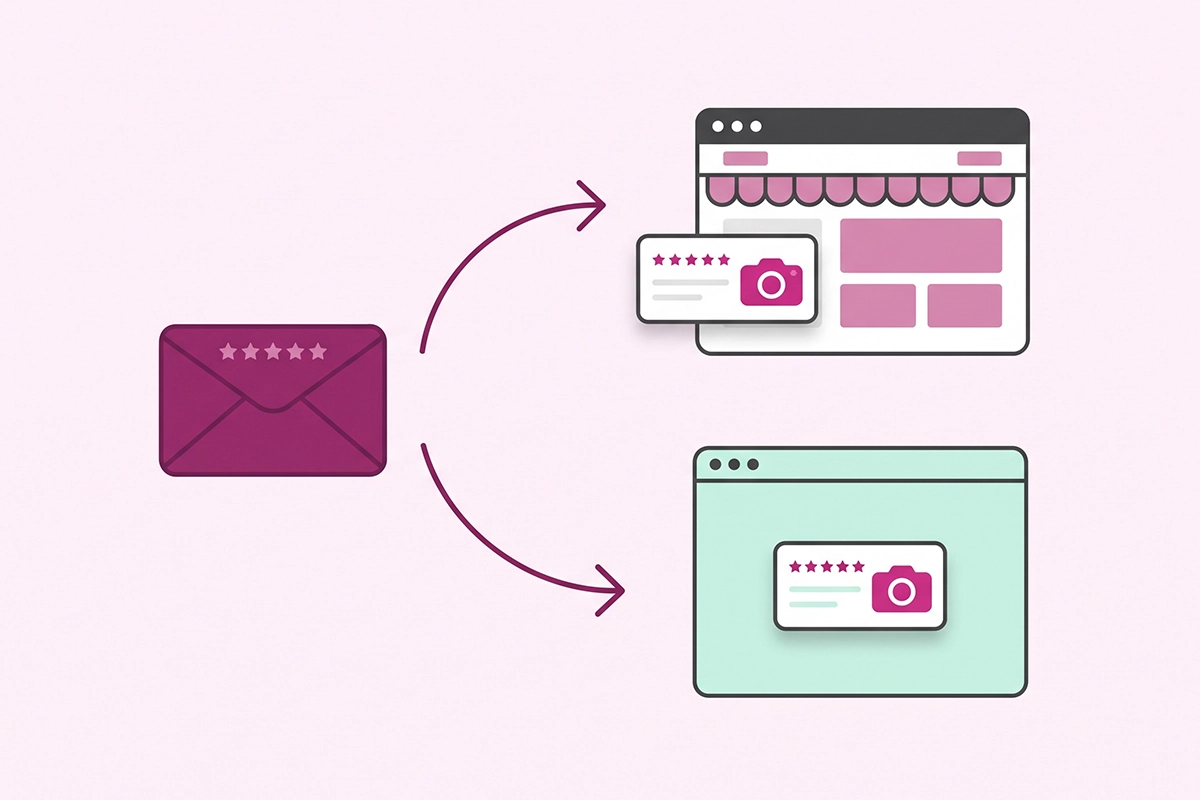
Which one opens from an email is a single dropdown under Settings > Collection flow, labelled "Where customer gets redirected when writing reviews from emails." Judge.me marks the external form as recommended, so it's what many stores end up running.
The external form earns that recommendation for practical reasons. It doesn't depend on the review widget being installed cleanly in your theme, and for stores selling in more than one language it opens in the same language as the email. The cost is that it is not your store. The page sits on a mint green background that Judge.me's documentation says cannot be customized.
The in-store form keeps the customer on your domain, surrounded by your theme. It depends on the Review Widget being installed cleanly, and a duplicated widget is a known cause of "This field is required" errors. My recommendation for a first-year store: stay on the external form unless the off-brand page really bothers you. If you switch, run the phone test further down first.
What about the form inside the email?
The email itself has a separate setting called the review trigger, with three options: Stars, Button, and In email form. Changing it needs the Awesome plan. The in-email form lets a customer rate and write without leaving the inbox, which should help raw review count.
Judge.me's documentation doesn't say whether photos can be attached inside the email. Until it does, I'd use Stars or Button when photos are the goal, because both send the customer to the full form with its media step. The trigger sits alongside the timing and reminder choices covered in the review request automation guide.
Branding the Judge.me review form: what you can change, and what you can't
This is where expectations and settings part ways. Most owners open the form settings looking for a logo upload and a background color. Neither exists for the form.
What the free plan lets you brand
Two colors. The primary color under Settings > Branding flows through to buttons, stars, and email templates, and the form uses it by default. The star color can be set on its own in the Styling tab. Set both to your brand color and the form already looks less generic.
One trap: if your star color matches the form background, the stars become invisible. Judge.me lists it in its own troubleshooting notes.
You can upload a logo on the free plan, but it only appears in emails. Email styling doesn't carry over to the form.
What $15 a month adds
The Awesome plan opens custom colors for text, form background, field background, buttons, and button text, plus a corner style (Square, Soft, Round, or Extra round). It also opens the rating icon, so a pet store can swap stars for paws and a jeweler for diamonds.
The Text tab is the bigger win. Every screen title, introduction, and placeholder becomes editable, including the star-rating guidance that defaults to "Poor" under one star and "Great" under five. Rewrite those in your own voice, but keep them neutral. A label that nudges people toward five stars is steering, and I'd stay well away from it.
Whether that's worth $15 depends on what else you'd use. The Judge.me pricing breakdown walks through the full list. If form wording is the only thing you want, I'd stay on free.
What nobody can change
Four things are fixed on every plan: the mint green page behind the hosted form, the privacy statement at the bottom of the review content screen, and the email address and display name fields, which are always required. Customers can still choose to post anonymously.
Custom questions for fit, shade, skin type, and use case
A star rating tells the next shopper almost nothing about whether a dress runs small or a foundation suits oily skin. Custom questions fix that, and they are an Awesome plan feature. You'll find them inside the Write a Review settings.
There are five question types: single choice, multiple choice, rating scale, slider, and free text. You can build up to ten templates and assign each one by product tag, so skincare products get the skin type question and apparel gets the fit question. Since July 23, 2026, the questions translate automatically for multi-language stores.
Four questions that earn their place:
- Fit (single choice): Runs small, True to size, Runs large.
- Shade match (rating scale): how close the color was to the product photo.
- Skin type (single choice): Dry, Oily, Combination, Sensitive.
- Use case (multiple choice): Everyday, Gift, Travel, Work.
Turn on "Allow filtering for this question" for the choice questions and shoppers can filter reviews by the answer. That is the feature that makes the extra screen worth it. The post on reviews for clothing and beauty stores covers which attributes cut returns.
The limit I'd set: two questions per template, and none marked required. Every extra screen sits between the customer and the photo upload. Ask for five attributes and you'll get tidy data and no pictures.
Why do customers skip the photo step? The three settings that fix it
Because of where it sits. The default layout, called Multi-step, runs in this order: star rating, review content, customer information, media upload, confirmation. By the time the photo screen appears, the customer has typed their review and feels finished.
This exact complaint shows up in the Shopify Community forum. An owner describes customers who write a review from the email, reach a later page asking for photos, get confused, and close the tab. The case for chasing those photos is in the photo reviews versus text reviews post. Here are the settings.
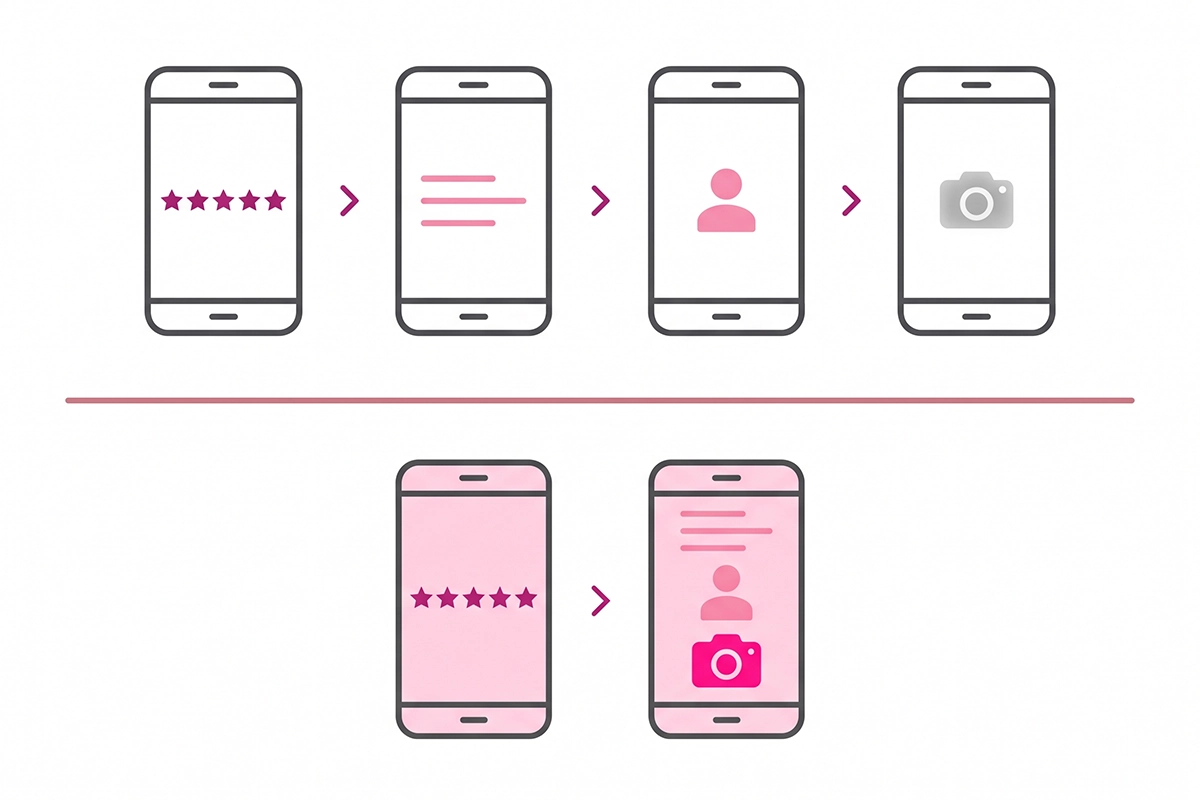
1. Turn on both media asks and switch to the Compact layout
In the Flow tab, tick "Ask for review images" and "Ask for review videos." Then change "Form theme" from Multi-step to Compact. Compact puts the review text, the customer details, and the media upload on one screen straight after the star rating, so the photo field is visible while the customer is still writing.
Compact is free, but only for stores in the Early User Program. Join under Settings > Advanced by ticking "Join Judge.me Early User Program." It's an early-access feature, so check how it behaves on the form your emails use before you rely on it.
2. Tie the coupon to photo and video reviews
On Awesome, coupons can trigger for any review, for reviews with at least one photo or video, or for reviews with a video. Choose the middle option. Judge.me then shows the offer as a banner on the form and again on the media upload step, which is exactly where the customer is deciding whether to bother.
3. Switch on the media reminder email
Also on Awesome. The media reminder goes to customers who left a text-only review and gives them a simple upload form. Set "Send reminder after" to anywhere from 1 to 30 days. I'd start at three, while the product is still in use and the review is still fresh.
There's a "Minimum stars rating for reminders" filter. Leave it on all reviews. Asking only your happiest customers for photos tilts what shoppers see, and the FTC has said that kind of selective asking can run into trouble even where its reviews rule doesn't name it.
An honest caveat: Judge.me doesn't publish what each setting adds, so I can't promise a percentage. Count your photo reviews as a share of all reviews for 30 days before the change and 30 days after.
The thank-you screen, and how the discount actually gets delivered
The last screen says "Thanks for your review!" and tells the customer it will appear on the store soon. On the free plan you can add two follow-up prompts in the Flow tab: one asking for a store review, one asking the customer to review other products from the same order. On Awesome, you can rewrite the thank-you message itself in the Text tab.
What the thank-you screen does not do is hand over a discount code. Judge.me's coupon documentation describes a 30-minute wait after submission, which gives the customer time to add media and confirm their email. Only then does Judge.me check whether the review qualifies and send the code by email.
The success screen confirms a coupon has been earned and says the email will arrive within the hour. If customers write in asking where their code is, that delay is usually the answer. It's worth one line in your request email so nobody feels misled.
The rules on the incentive itself
You can't limit the coupon to four and five star reviews. Judge.me removed rating-based coupon conditions to comply with Shopify's product review policy, and the FTC's guidance on its reviews rule draws the same line: incentives are allowed, as long as nothing states or implies the review has to be positive.
Two more settings to check. Tick "This coupon can only be used by the reviewer" so codes don't end up on coupon sites. And confirm that reviews earned with a coupon are labeled as incentivized on your storefront. Judge.me tags them in the Google Shopping feed automatically, but shoppers reading your product page deserve the same disclosure.
Test the form on a phone before a customer does
Your customer will most likely open the request on a phone, with one free hand. Test the Judge.me review form that way. You don't need to place an order: under Settings > Request reviews, the links and QR codes section gives you a review link for any product on the free plan.
- Open the link on your phone, not your laptop.
- Tap a star and check you can see the stars against the background.
- Write two sentences and count the screens between the stars and the photo field.
- Add a photo from your camera roll. The limits are five images at 10 MB each and one video up to 100 MB.
- Read the coupon banner, if you have one, and check the wording matches your offer.
- Submit, read the thank-you screen, then wait for the coupon email.
- Do it again with two stars and read what an unhappy customer sees.
The whole run takes about ten minutes, plus the wait for the email. If your coupon is limited to verified buyers, a test from a link won't earn one, so check that part with a real order. Hide or delete the test reviews afterwards.
Wrapping up: what to change this week
You can customize the Judge.me review form more than the default suggests and less than you'd hope. The free plan gives you your brand color, your star color, the photo and video asks, and the Compact layout through the Early User Program. That is enough to make the form look intentional and to put the photo field in front of the customer while they're still typing.
The $15 Awesome plan adds the parts that sound like branding: custom colors, your own wording on every screen, custom questions, and the two settings that chase photos after the fact, the photo coupon and the media reminder. If photo reviews are a priority for your store, that is the reason to pay. If they aren't, the free settings will do.
Some things stay as they are: no logo on the form, a mint green hosted page, a discount that arrives by email half an hour later. Knowing that up front saves an afternoon of looking for settings that don't exist.
If you only do three things this week: tick both media asks, join the Early User Program and switch to Compact, and run the phone test. Then write down your photo rate and check it again in 30 days.
Rather have someone set this up and watch the photo rate?
Reviews Management covers the Judge.me configuration, branded request emails, replies to every review, and a monthly report that includes your photo rate. $299 setup, from $199 a month.
See how Reviews Management works →Or email contact@studioniza.com if you have a specific question about your store. I read every one.
Frequently asked questions
If you're still unsure after reading these, just send the question.
Can I customize the Judge.me review form on the free plan? +
Yes, partly. The free plan lets you set your primary color and star color, turn on the photo and video asks, ask for a review title, and add follow-up prompts on the thank-you screen. Custom colors, corner style, custom wording, and custom questions need the Awesome plan at $15 a month.
Can I add my logo to the Judge.me review upload page? +
No. Judge.me has no logo setting for the review form or the hosted upload page. The logo you upload in the email styling settings only appears in review request and coupon emails, so the form picks up your brand through color instead.
Can customers add photos after they've submitted a review? +
Yes. Customers can edit their own review to add images or a video. On the Awesome plan, the media reminder email does the asking for you by sending anyone who left a text-only review an upload form, between 1 and 30 days later.
How many photos and videos can a customer upload to a Judge.me review? +
Up to five images at 10 MB each and one video up to 100 MB per review. Customers can also paste a standard YouTube link instead of uploading a video. YouTube Shorts links are not supported.
Can I give a discount only for 5-star reviews? +
No. Judge.me removed rating-based coupon conditions to comply with Shopify's product review policy. The FTC's guidance says the same thing from the legal side: an incentive can't require or imply a positive review. Offer the coupon for any honest review, or for any review that includes a photo or video.
Does the Judge.me review form work in other languages? +
Yes. The hosted external form opens in the same language as the review request email, which is why Judge.me recommends it for multi-language stores. Custom questions have also translated automatically since July 2026.