
Most Shopify owners treat blog images as decoration. You write the post, grab a stock photo that roughly matches the topic, drop it at the top, and move on. No alt text. No filename beyond whatever the stock site called it. No thought to file size. It looks fine, so it feels done.
That habit quietly costs you three things: image-search traffic, page speed, and social clicks. Shopify blog images and SEO are connected in ways that product images are not, and the rules are different enough that copying your product-photo habits onto blog posts leaves easy wins on the table.
This post is about doing blog images right. Not perfectly. Right enough that each image earns its place and pulls a little traffic while it sits there. I will walk through the four jobs a blog image actually does, how alt text and filenames work differently for blog visuals than for products, when a plain diagram beats a stock photo, how to keep images from slowing your post down, and the one image most owners forget: the share card that decides whether anyone clicks your link on social.
None of this needs a paid app or a designer. It needs about ten extra minutes per post and a checklist you can run from memory after a week. If you already publish a blog, or you are about to start, this is the part that turns images from filler into a small, compounding traffic channel.
The four jobs a blog image does
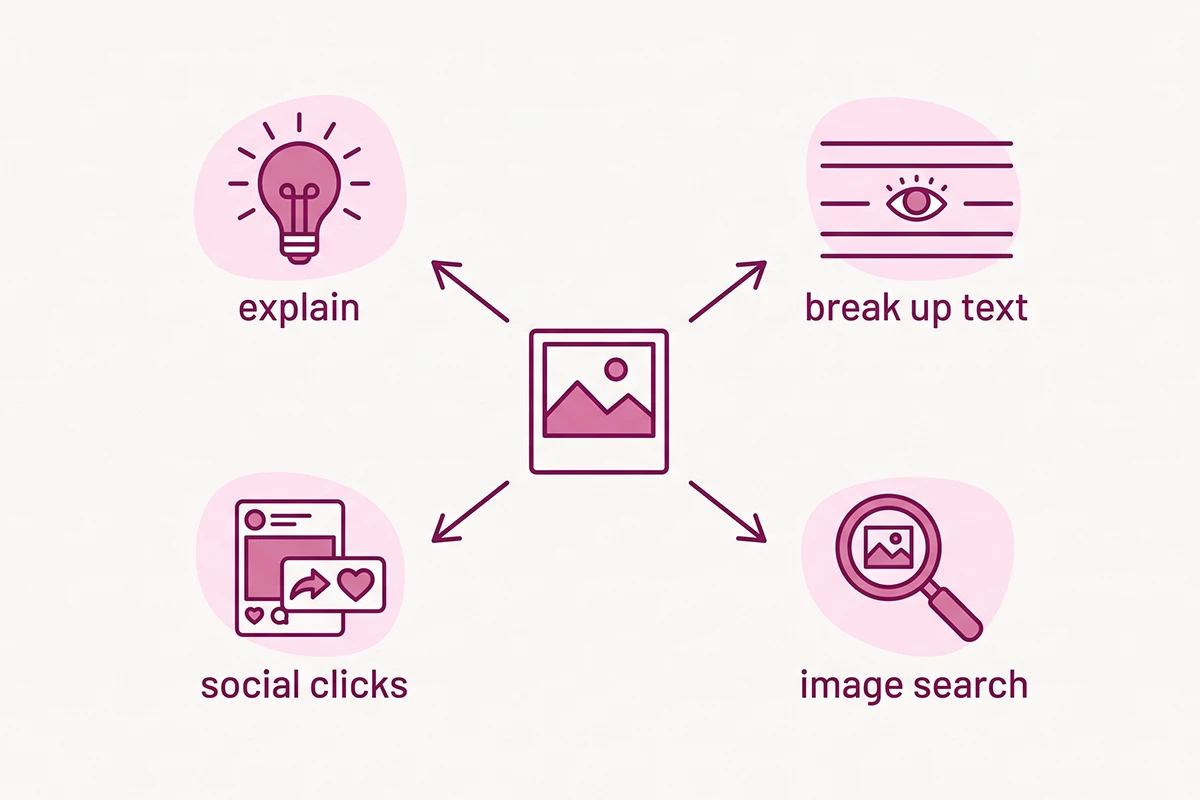
A blog image does four jobs: it explains something words cannot, it breaks up a wall of text so people keep reading, it earns traffic from image search, and it drives clicks when your post gets shared. Most images do one of these by accident. A good one is chosen to do a specific job.
It explains. This is the highest-value job. A labeled diagram or a real screenshot can carry a step, a comparison, or a structure that would take two hundred words to describe in prose. When an image does the explaining, your writing gets shorter and clearer, and the reader understands faster.
It breaks up the text. People skim before they read. A long, unbroken block of text reads as work, and skimmers bounce. An image every few hundred words gives the eye a rest and signals that a new idea is starting. That alone keeps people on the page longer.
It earns image-search traffic. Image search is a real channel, not a rounding error. It has long been one of the largest slices of activity on Google, and shoppers use it to find products, tutorials, and examples. An optimized blog image can show up there and send you visitors who never would have found the post through a normal text search.
It drives social clicks. When your post gets shared, the image is often larger than the headline in the feed. And with AI Overviews now appearing on more than 20 percent of Google searches and increasingly pulling visuals into the answer, the image is part of how your content shows up in places you do not control. If you want your posts to travel, and to show up in AI Overviews, the image matters as much as the headline.
Why blog image SEO is not product image SEO
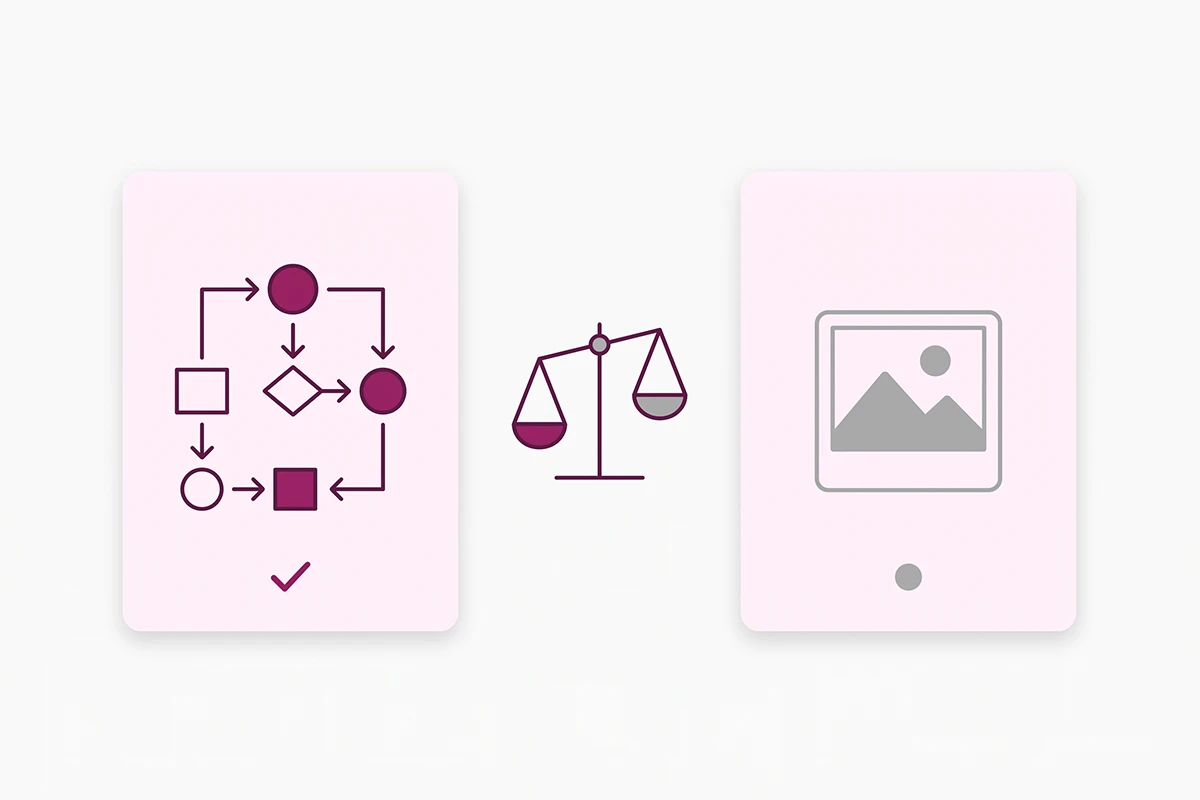
Blog image SEO and product image SEO share the basics (alt text, filenames, compression) but diverge on almost everything else. Product images sell a specific item from a fixed set of angles. Blog images explain an idea, and they live inside a post that Google reads as a whole.
On a product page, the image is tied to a SKU. It is the product on a white background or in use, matched to a color or size variant, and the alt text describes the item a shopper is about to buy. That is a different job, with its own rules, and I covered it in the guide to storefront product image SEO.
On a blog post, context is what carries the image. Google reads the surrounding paragraphs, the nearest heading, and any caption to decide what the image is about and when to show it. Placement matters more than it does on a product page, because there is no product schema doing the explaining for you. The image has to sit next to the text it illustrates.
Two more differences change how you work. Blog posts get shared and product pages rarely do, so a blog needs a deliberate share card. And blog images are often diagrams, screenshots, and charts rather than photos, which means the alt text describes a takeaway, not a thing on a table. Here is the split at a glance.
| Factor | Product image | Blog image |
|---|---|---|
| Main job | Sell a specific item | Explain an idea, earn search and social |
| What Google reads for context | Product title, price, product schema | Surrounding paragraphs, heading, caption |
| Alt text describes | The product a shopper is buying | The point the image makes |
| Typical format | Photo on white or lifestyle | Diagram, screenshot, chart, or photo |
| Shared on social? | Rarely | Often, so it needs a share card |
| Variant logic | Yes (color, size) | No |
Alt text and filenames for blog images
For a blog image, write alt text that describes the point the image makes, name the file in plain words with hyphens, and place the image next to the paragraph it illustrates. Those three signals, all pointing at the same topic, are what Google uses to understand and rank a blog visual.
Alt text. Google calls alt text the most important attribute for describing an image, and it is also what screen readers and AI engines rely on. Describe the takeaway, not every pixel. For a diagram, "diagram showing the four jobs a blog image does" beats "colorful graphic." Keep it to one clear sentence. Once alt text runs past two or three sentences it stops being alt text and belongs in the body copy instead.
Do not stuff keywords. A string like "shopify blog images seo image seo blog alt text" reads as spam to a screen reader and to Google, and it can hurt you. Use your keyword once, only where it fits the actual description. Shopify itself notes that about a third of homepage images have missing or poor alt text, so a little care here already puts you ahead.
Filenames. The filename is a light clue, but it is a free one. Google reads it, so shopify-blog-images-seo-diagram.webp beats IMG_4821.jpg. Use plain words separated by hyphens, not underscores: Google treats hyphens as word separators and reads underscores as joining two words into one. Rename the file before you upload it, because Shopify keeps the original name in the image URL, and you cannot easily change it later.
Placement and captions. Google pulls context from the text nearest the image, including any caption, so put each image beside the paragraph it explains rather than clustering them at the top. If a caption genuinely helps the reader, add one. If the surrounding text already says it, you can skip the caption and let the copy do the work. This kind of on-page detail is part of what the SEO service handles page by page, but it is entirely doable yourself.

When a plain diagram beats a stock photo
A plain diagram beats a stock photo whenever the image is meant to explain something. A stock photo of a laptop teaches the reader nothing. A simple labeled diagram of the actual process teaches them, and it gives Google and AI engines something specific to understand and cite.
Stock photos are decoration, and they are on a thousand other sites, so they add no unique signal to your page. An original image (a diagram you made, a screenshot of the real thing, your own photo) is unique to you. Google's guidance rewards useful, relevant visuals placed near relevant text, and "useful" almost always means original and specific rather than generic and borrowed.
There is a technical reason to favor diagrams too. Google recommends that you not bake important text into images, and keep real text in HTML so it stays accessible and translatable. So a good instructional diagram carries meaning through shapes, arrows, and short labels, while the full explanation lives in your body copy where search engines and translation tools can read it.
That is exactly how the images on this blog work. The body diagrams are wordless icon-and-arrow flows, and the typeset words live in the post itself and on the share card, not burned into the picture. It keeps every diagram readable, translatable, and reusable, and it means the image reinforces the text instead of hiding the text inside a JPEG.
None of this means photos are wrong. A real screenshot of a dashboard, a real product in use, or a genuine before-and-after all earn their place, because they show something true and specific. The line is not "diagram good, photo bad." It is "original and explanatory beats generic and decorative." If you would rather not build these yourself, that is part of what the blog content service does: every post ships with real diagrams, not stock filler.
Compression, format, and speed
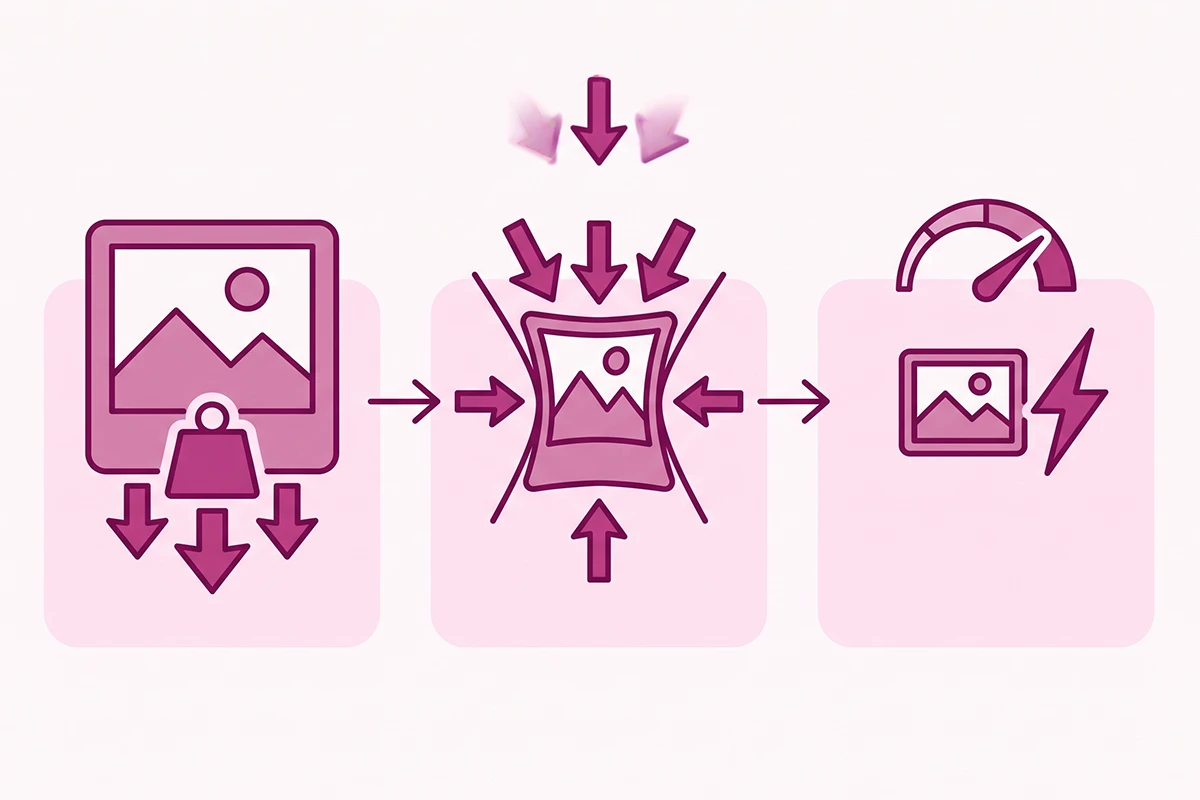
Blog images slow your post down when they are too big or in the wrong format. The fix is simple: compress every image, save it as WebP, and size it to how it actually displays. On most posts, the hero image is the single heaviest thing on the page.
That heaviest image usually is your Largest Contentful Paint element, the metric Google uses to judge how fast a page feels. A good score is 2.5 seconds or less. When the hero is a huge, uncompressed file, that clock keeps running, the page feels slow, and skimmers leave before they read a word.
Format. WebP (and its newer cousin AVIF) are far smaller than JPEG or PNG at the same quality. In one worked example from MDN, a one-megabyte image dropped to roughly 46 kilobytes when converted to a modern format, a saving of about 95 percent. Shopify already serves WebP to browsers that support it, but its automatic compression is conservative. If you compress the source yourself first with a free tool like Squoosh, you get a much smaller file before Shopify's own pass even runs.
Size to display. Do not upload a 4000-pixel image that shows at 800 pixels wide. The browser still downloads all those pixels. Export the image close to the size it actually appears on the page, and let the hero be the only large image above the fold.
Do not lazy-load the hero. Lazy loading delays an image until the reader scrolls near it, which is great for images further down the post but wrong for the hero. The hero is already on screen when the page opens, so lazy-loading it just delays your Largest Contentful Paint. Lazy-load the below-the-fold images and load the hero normally. Image weight is one of the biggest levers you have over Core Web Vitals. Here is a quick format cheat sheet.
| Image type | Best format | Rough size target |
|---|---|---|
| Hero / featured | WebP | Under 200 KB |
| In-post diagram or screenshot | WebP | Under 150 KB |
| Photo with fine detail | WebP | Under 200 KB |
| Simple graphic, few colors | WebP or PNG | Under 100 KB |
| Social share card | PNG | Under 300 KB |
The social share card that lifts clicks
The share card is the image that shows when your post is posted on Facebook, LinkedIn, or X. It is set by your Open Graph image, it should be 1200 by 630 pixels, and it is the one place where typeset text on the image actually helps.
When someone shares your post, most platforms read the og:image tag in your page head and use that. If it is missing or points at the wrong file, the platform guesses, which is why you sometimes see a random logo, a stray product photo, or nothing at all. That is the "wrong image on Facebook" problem, and it is entirely a share-card problem.
The share card is not the same as your hero or featured image, even though people mix them up. The hero sets the tone inside the post. The share card sells the click from outside the post, in a crowded feed, at thumbnail size. They do different jobs, so they can be different images, and your blog featured image SEO improves when you set both on purpose instead of hoping one file covers both.
Because the share card is built for a thumbnail and is not read as body content, it is the right place to put words on the image: the post title in a clear font, a magenta accent, your logo in the corner. A legible title reads better in a feed than a soft stock photo does. On Shopify you can set the Open Graph image in your theme or through an SEO app; on this site it is written straight into each page's head so the share card is never left to chance.
One habit worth keeping: before you publish, paste the post URL into a link preview or debugger tool and check that the right card shows. It takes thirty seconds and it catches the missing-image problem before your first share does.
Where to start this week
You do not need to overhaul every old post this weekend. Start with your next one, and fix the rest as you touch them.
The short version: give every blog image a job before you add it. Write alt text that describes the point the image makes, name the file in plain words with hyphens, and drop it next to the paragraph it explains. Compress it, save it as WebP, and size it to how it displays. Then set one deliberate share card so your link looks like something worth clicking when it travels.
For older posts, a quick pass helps: open your five best-performing articles, add alt text where it is missing, rename any IMG_2049.jpg files, and check that each one has a share card. That alone recovers image-search visibility and cleans up how your best content looks when it is shared.
None of this is glamorous, and none of it is hard. It is about ten minutes a post, done consistently, and it compounds the same way the writing does. The stores that win at Shopify blog images are not the ones with the prettiest stock photos. They are the ones whose images actually explain something, load fast, and travel well.
Want the blog handled, images and all?
The Studio Niza blog content service ships each post with compressed WebP images, real alt text, descriptive filenames, and a proper share card. Blog Content starts at $449/month.
See blog content plans →Or email contact@studioniza.com if you have a specific question about your store. I read every one.
Frequently asked questions
If you're still unsure after reading these, just send the question.
Do blog images need alt text on Shopify? +
Yes. Every meaningful blog image should have alt text, the same as a product image. It helps screen readers, gives Google context for image search, and is the main way AI engines understand what your visual shows. Write one clear sentence describing the point the image makes, and skip alt text only on images that are purely decorative.
What should I write for alt text on a decorative blog image? +
If an image genuinely carries no information, such as a background texture or a divider, you can leave the alt attribute empty so screen readers skip it. But most blog images carry meaning, so describe the takeaway instead: "diagram of the review request timeline" rather than "graphic." When in doubt, describe it.
Does the image filename still matter for a Shopify blog post? +
It is a small signal, but it is a free one. Google reads filenames as a light clue about an image's subject, so shopify-blog-images-seo-diagram.webp beats IMG_4821.jpg. Use plain words separated by hyphens, and rename the file before you upload, because Shopify keeps the original name in the image URL.
What image format is best for Shopify blog posts? +
WebP. It is much smaller than JPEG or PNG at the same quality, and Shopify already serves WebP to supporting browsers. Compress the source image first with a free tool, then upload, so the file is as small as possible before Shopify's own compression runs.
Why does my Shopify blog post show the wrong image when I share it? +
Social platforms pull the image from your Open Graph tag (og:image). If it is missing or points at the wrong file, the platform guesses, which is why you sometimes see a logo or nothing. Set a dedicated 1200 by 630 share card for each post, then run the URL through a link preview tool before publishing.
How many images should a Shopify blog post have? +
Enough to do the job, usually two to five for a standard post. Add an image where it explains something or breaks up a long stretch of text, not to hit a number. One hero image, a couple of diagrams or screenshots, and a share card cover most posts.