
Most new Shopify owners notice it the first time they share a post: the URL has /blogs/news/ buried in the middle, and it looks a little off. Then they find a forum thread warning that this is bad for SEO, and the worry sets in.
Here is the short version. The /blogs/news part of your Shopify blog URL structure is mostly cosmetic, and you cannot remove it anyway. The thing that quietly costs you traffic is something most owners never look at: the tag pages Shopify creates automatically every time you tag a post.
This post walks through how Shopify blog URLs actually work, which parts matter and which parts do not, how to set up your blog handle and tags so you are not generating thin duplicate pages, and what to do if you have already changed URLs and broken some links. It is written for owners setting up a Shopify blog in the first year, before the structure gets baked in and expensive to undo.
None of this needs an app or a developer for the basics. Most of it takes an afternoon. The point is to get the boring foundation right once, so the posts you write have a clean place to live.
How do Shopify blog URLs actually work?
Every Shopify blog post lives at a three-part address: your domain, then /blogs/, then the blog handle, then the post handle. A real example looks like yourstore.com/blogs/news/how-to-clean-suede-boots.
The /blogs/ part is fixed. It is built into Shopify and you cannot remove or rename it, no matter which theme or setting you try. Shopify has confirmed this limitation in its own community for years, and the only real workaround is hosting your blog somewhere else entirely.
The second part, news, is the blog handle. Shopify names your first blog "news" by default, but that is just a starting value you can change. The third part is the post handle, which Shopify generates from your post title and which you can edit one post at a time.
Here is the part that confuses people. In Shopify, a "blog" is not your whole blog. It is closer to a top-level category. You can create several blogs (news, guides, recipes) and each becomes its own /blogs/{handle}/ folder. Most stores only ever need one. Google's own URL structure guidance is to keep addresses simple and built from real, descriptive words, which Shopify mostly allows once you understand which parts you control.
Is the /blogs/news URL actually an SEO problem?
Mostly no. This is the worry that brings people to forums, and it is the one that matters least.
Google reads the URL as one small signal among many. A clean, readable URL helps users trust the link and gives search engines a weak hint about the topic. But /blogs/news/your-post is already readable. The redundant-looking folder does not carry a penalty. There is a popular claim that Google stops crawling pages with the word blog in the URL, and there is no credible evidence for it.
So if a service offers to "fix your Shopify blog URL structure" for a fee, be skeptical. You cannot remove /blogs/, and renaming news to guides is a cosmetic change you can do yourself in two minutes. I would rather you spend that money on the posts themselves, or on the tag cleanup below, which actually affects traffic.
What does matter is the post handle. That is the part Google reads most closely, and it is fully in your control. Keep it short, descriptive, and built around one or two keywords. yourstore.com/blogs/news/shopify-shipping-times beats a handle full of stop words or a string of numbers Shopify auto-generated.
If you want the bigger picture, what actually grows a Shopify blog is far more about depth and consistency than URL cosmetics.
Why do Shopify blog tag pages hurt SEO?
This is the real issue, and almost nobody setting up a blog thinks about it.
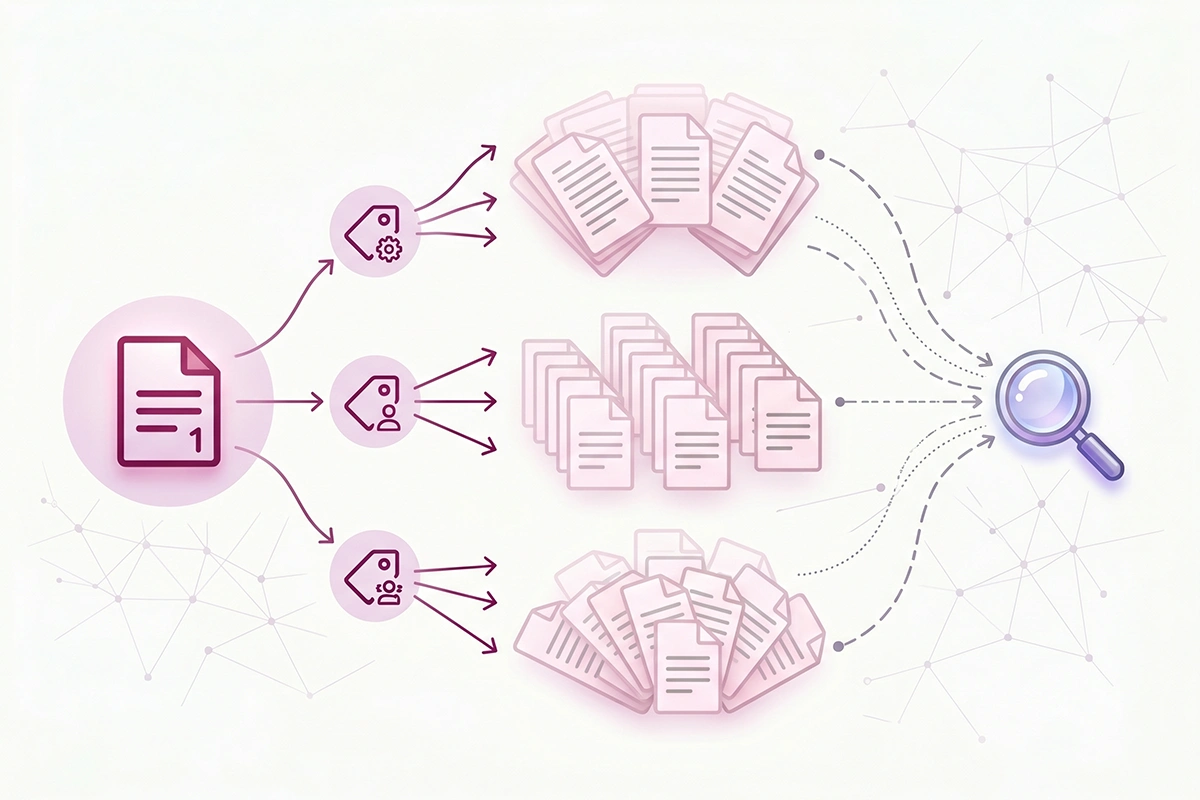
Every time you add a tag to a post, Shopify generates a new page for that tag at yourstore.com/blogs/news/tagged/your-tag. That page lists every post carrying the tag. It sounds harmless. The problem is what those pages contain: mostly the same post titles and excerpts that already appear on your main blog page and on each other.
To a search engine, that reads as thin content (a page with little unique value of its own) and duplicate content (a page that closely repeats another). Tag pages also have no editable title or meta description by default, so they tend to share near-identical metadata too. Google and Shopify both treat duplicate content as something to consolidate, not reward.
There are two real costs. The first is crawl budget. Search engines spend only so much effort crawling a small store, and dozens of near-empty tag pages waste that effort on pages you do not care about, which can leave your actual posts crawled less often. The second is dilution: a pile of low-value pages can drag on how the whole site is judged.
This adds up fast. A blog with 40 posts and a loose tagging habit can easily produce 60 or 80 tag pages, most of them thin. If you have ever found pages that will not index in Google and wondered why, auto-generated tag pages are a common culprit. You can see how many you have by searching site:yourstore.com inurl:tagged in Google.
How to choose your blog handle and categories
You make two structural decisions when you set up a Shopify blog: what to name the blog (the handle) and whether to use more than one blog as categories. Get these right at the start and you rarely touch them again.
Naming the blog handle
If you only have one blog, the default news is fine. It is short and readable. If you want something on-brand, change it to something simple like journal or guides. Avoid naming it blog, which produces the clumsy /blogs/blog/ path. To change it, go to Content, then Blog posts, then Manage blogs, and edit the handle in the search engine listing section. If the blog already has live posts, set up a redirect first (more on that below) so existing links do not break.
One blog or several?
Because Shopify blogs act like categories, multiple blogs is how you get category-level URLs such as /blogs/guides/ and /blogs/news/. For most new stores, one blog is the right answer. Splitting ten posts across four blogs makes each section look empty and spreads your internal links thin. Add a second blog only when you have a real, sustained stream of content that deserves its own section.
Writing post handles
This is where SEO actually lives. Google recommends descriptive words in the path and hyphens between them, and warns against long ID numbers and stop-word clutter. Keep each post handle to one or two keywords, lowercase, hyphenated, and stable. Set it once and resist editing it later.
If keeping all of this consistent across dozens of posts sounds like a chore, that is the part the Blog Content service handles: clean handles, sensible structure, and posts written to rank, not just fill a calendar.
How to keep tag pages from creating thin content
You have three ways to handle tag pages. Pick based on whether the tag page could ever be useful to a searcher.
| Approach | What it does | When to use it |
|---|---|---|
| Leave them indexed | Tag pages stay in Google as Shopify generates them | Almost never for a new store, and only if a tag page is genuinely rich and unique |
| Add noindex, follow | Tells search engines not to index the tag page, but to still follow the links on it | The default fix for most thin tag pages |
| Convert to a real page or collection | You build a proper page and control its title, meta, and content | When a tag maps to a topic genuinely worth ranking for |
For most new stores, noindex, follow is the right move for tag pages. It keeps them working for human navigation while removing them from search results, so they stop competing with your real posts and stop wasting crawl budget. Adding it means a small edit to your theme code (theme.liquid) with a condition that targets tag pages, which is a quick job for anyone comfortable in the theme editor or a short task for a developer.
Whatever you choose, keep tags few and consistent. Treat them like a short, fixed set of categories, not freeform hashtags. Five to ten tags across the whole blog is plenty for a store with under a few hundred posts. Using winter, Winter, and winter-care as three separate tags triples your thin pages for no reason.
And do not lean on tag pages for internal linking. Link from inside your posts to your real pages and related articles instead. A deliberate internal linking strategy does far more for discovery than a wall of tag links ever will.
The redirect plan if you already changed your URLs
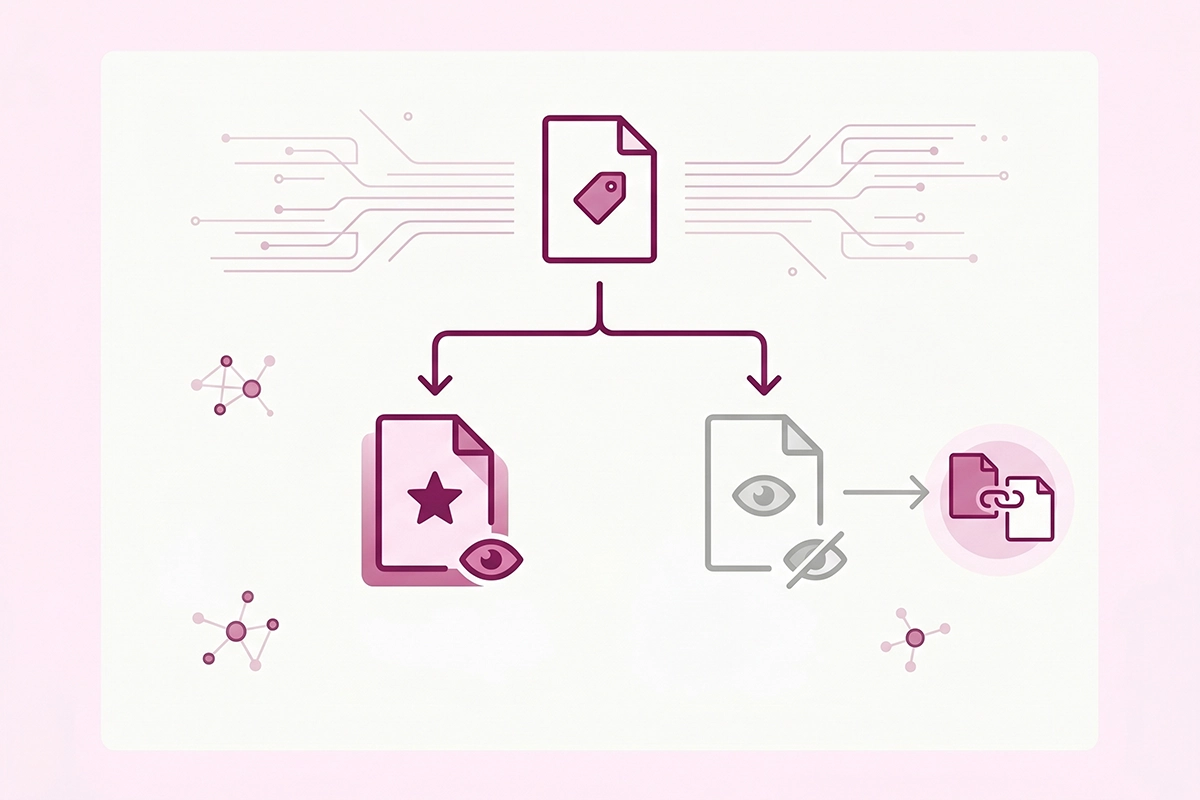
If you have already renamed your blog or edited post handles and links started returning 404 errors, here is how to clean it up. Shopify handles this natively, and it only creates permanent (301) redirects, which is exactly what you want for moves that are meant to last.
When you change a handle
When you edit a post or blog handle in Shopify, watch for the create URL redirect option and leave it checked. That tells Shopify to send the old URL to the new one automatically. This is the easiest path, and it is the reason to make URL changes inside Shopify rather than working around it.
Adding redirects manually
For anything that slipped through, go to Online Store, then Navigation, then View URL redirects, and click Create URL redirect. Put the old path in the "Redirect from" field and the new path in "Redirect to", using paths without your domain, like /blogs/news/old-post. Shopify also lets you bulk-upload redirects with a CSV from the same screen, which saves hours during a larger cleanup.
A couple of limits to know. Shopify will not let you create redirects from certain reserved paths such as /products, /collections, and /collections/all. And a redirect points one old URL to one new URL, so plan your list before you start.
The honest rule
The cheapest redirect plan is not needing one. Every URL change costs a little authority in transit, even with a clean 301. So once a post is live and indexed, leave its handle alone unless you have a real reason to change it. Decide the structure up front, then stop touching it.
If you are sorting out redirects as part of a wider technical cleanup, that work sits inside the SEO and GEO service, alongside indexing and schema.
Getting your blog structure right from the start
Here is what to take away. The /blogs/news path in your Shopify blog URL structure is not worth losing sleep over. You cannot remove it, and it does not carry a penalty, so do not pay anyone to "fix" it.
The two things that do matter are within your control. Write clean, keyword-aware post handles and set them once. And manage your tags deliberately: keep them few, noindex the thin tag pages, and build real pages for the topics that are worth ranking for.
None of this is glamorous, and none of it is hard. It is an afternoon of setup that saves you from a tangle of redirects and thin pages a year from now, when you have a hundred posts and far less time. Get the foundation clean while the blog is small, then put your energy into the posts themselves, which is the part that actually compounds.
Want your blog set up right the first time?
The Studio Niza Blog Content service handles the unglamorous structure too: clean handles, sensible tag use, internal links, and schema, so you are not redirecting your way out of a mess in year two. Blog content starts at $449/month.
See how blog content works →Or email contact@studioniza.com if you have a specific question about your store. I read every one.
Frequently asked questions
If you're still unsure after reading these, just send the question.
Can I remove /blogs/ from my Shopify blog URL? +
No. The /blogs/ segment is hardcoded into Shopify and cannot be removed or renamed, even with a custom theme. You can only edit the blog handle and the post handle that come after it. If you need full control over your blog URL structure, the only real option is hosting your blog on a separate platform, which brings its own tradeoffs.
Should I change my Shopify blog name from ‘news’? +
Only if you want to. The default news handle is short and perfectly fine for SEO. If you prefer something on-brand like journal or guides, change it, but set up a redirect at the same time so existing links do not break. Avoid renaming it to blog, since that creates the awkward /blogs/blog/ path.
Do Shopify blog tags help with SEO? +
Not directly. Shopify tags are a navigation feature, not a ranking signal, and Google gives them no special weight. Used loosely, they create thin tag pages that can work against you. Keep tags few and consistent, and treat them like a small set of categories rather than keywords.
How many tags should I use per Shopify blog post? +
Keep it small. A handful of consistent tags across the whole blog is usually enough for a store with under a few hundred posts. The goal is to help readers find related posts, not to label every possible keyword. Every extra tag is one more thin page Shopify has to generate.
Will changing a Shopify blog post URL hurt my SEO? +
It can, if you do not redirect. Changing a handle breaks the old URL, so any links or rankings pointing to it land on a 404. When you edit the handle in Shopify, leave the create URL redirect option checked, or add a 301 redirect manually. Done right, you keep most of the page value.
Does Shopify automatically redirect old blog URLs? +
Sometimes. When you change a post or blog handle and leave the create URL redirect box checked, Shopify sets up a 301 redirect for you. If that box was unchecked, or the URL changed another way, you add the redirect yourself under Online Store, then Navigation, then URL redirects.