
You built the store. You added products. You set up collections. Then you searched Google for your own products and found nothing, or you opened Search Console and saw a long list of pages sitting under not indexed. If your Shopify pages are not indexed, you are looking at one of the most common problems new store owners hit in their first year.
Here is the reassuring part. Most of the time this is not a broken store. It is one of five specific causes, and four of them have a clear fix. The fifth is sometimes just time.
This walkthrough covers the five real reasons Shopify pages don't get indexed: thin content, duplicate variant URLs, a stray noindex tag, sitemap gaps, and weak internal links. For each one, I'll show you how to confirm it in Google Search Console so you are fixing the actual problem instead of guessing. Then I'll give you the order to work through them, because fixing things in the wrong order wastes the most precious thing a solo founder has, which is time.
One definition before we start. Indexed means Google has stored your page and can show it in results. Crawled means Google visited the page but has not decided to store it. Those are different states with different fixes, and telling them apart is half the battle. Let's diagnose your store.
Is this normal, or a real problem?
Before you change anything, find out whether you actually have a problem. New Shopify stores get indexed slowly, and that slowness is normal, not a fault.
Google does not promise to index every page on every site. Its own Page Indexing report documentation is clear that crawling and indexing take time and that not all pages make it in. For a store that launched last month, partial indexing is the expected starting point, not a red flag.
Discovered versus crawled, and why the difference matters
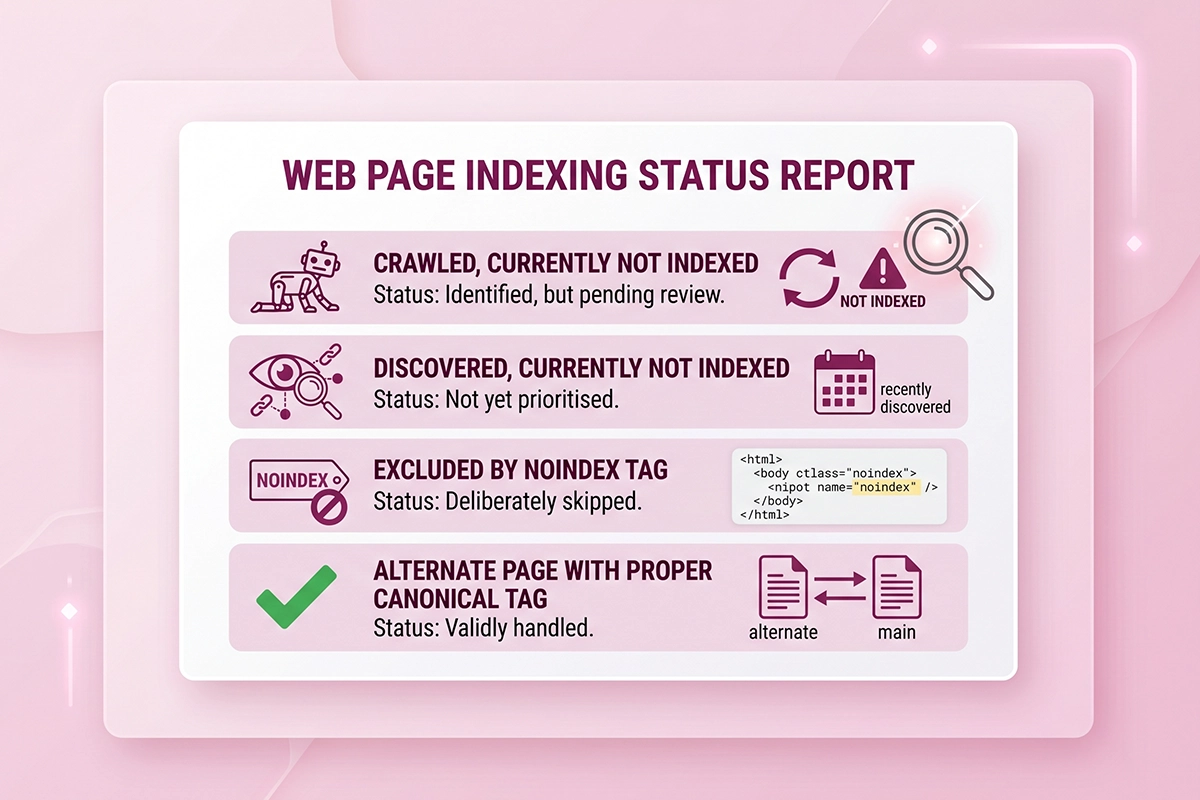
Open Search Console and look at the exact status on your missing pages. Two of them look similar but mean opposite things.
Discovered, currently not indexed means Google knows the page exists but has not visited it yet. This is mostly a queue and crawl-priority issue. New sites get crawled cautiously while Google learns how much load your server can handle, as Search Engine Land has documented.
Crawled, currently not indexed means Google did visit the page and chose not to store it. That is a value judgment, not a scheduling delay, and Ahrefs breaks down the distinction well. This one usually points to thin content or duplication, which we cover next.
When the answer is just patience
If your store is under three months old and the status is Discovered, the honest answer is often to wait and help Google along, not to panic. Submit your sitemap, add a few internal links, and give it a few weeks. If you want a structured way to rule out the basics first, run through the foundational SEO checklist before you assume something is broken.
Cause 1: Thin or near-duplicate content
The most common reason a crawled Shopify page does not get indexed is that Google decided it was not worth storing. This is the Crawled, currently not indexed status, and it usually means thin or near-duplicate content.
Thin content is a page with very little unique text. A product page with one line of manufacturer copy, or a collection page that is nothing but a grid of products with no description, gives Google almost nothing to evaluate. Near-duplicate content is worse. When 30 products share the same boilerplate description with one word swapped, Google treats them as versions of a single page and indexes only a few.
This is exactly where cheap SEO work fails new stores. Most low-cost SEO services template-fill the same meta description and the same body copy across every product, which is the fastest way to create the near-duplicate pattern that triggers this status. Real SEO writes each page to say something specific.
How to confirm this in Search Console
In the Page Indexing report, click Crawled, currently not indexed and look at the URLs listed. If they are mostly product or collection pages with little or repeated copy, content is your cause. Open two or three and read them as a stranger would. If you can't tell two products apart from their descriptions, neither can Google.
The fix
Give your highest-priority pages real, distinct copy. For products, that means descriptions that actually say something about fit, materials, and use. For collections, add a short intro paragraph that explains what the collection is and who it is for, because your collection pages are doing real SEO work and an empty one wastes the slot.
Cause 2: Duplicate variant and collection URLs
Shopify creates more than one URL for the same product, and that can rattle a new store owner who sees duplicate warnings in Search Console.
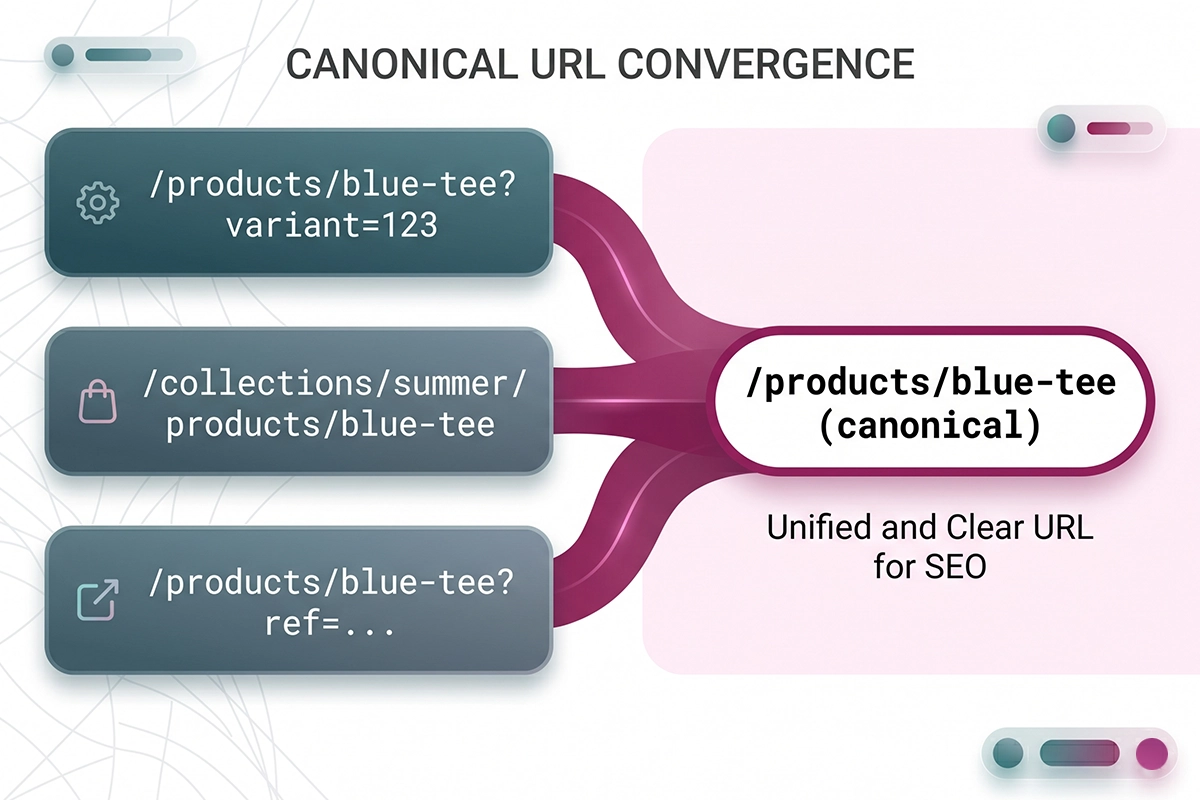
When a shopper picks a size or color, Shopify adds a parameter like ?variant=123456 to the URL. When they reach a product through a collection, the URL becomes /collections/summer/products/blue-tee instead of /products/blue-tee. Same product, multiple addresses.
Here is the good news. Shopify handles this automatically for most themes. It points a canonical tag from every variant and collection-path URL back to the clean /products/ URL. A canonical tag tells Google this is the master version, index this one. Google's own canonicalization guidance explains why this consolidates your ranking signals instead of splitting them across copies.
How to confirm this in Search Console
This usually shows up as Alternate page with proper canonical tag in the Page Indexing report, and that status is not an error. It means Google found a duplicate, read the canonical tag, and correctly chose to index the main version instead. If your variant and collection-path URLs land there, the system is working as intended.
When it is actually a problem
Trouble appears when a theme or app overrides Shopify's canonical, or when a script rewrites the URL to the ?variant= version on load. If your clean product URLs are the ones marked Alternate while the variant URLs get indexed instead, that is backwards, and it points to a theme or app conflict worth fixing. For most new stores, though, this cause is a false alarm, so confirm the canonical before you touch anything.
Cause 3: A noindex tag you didn't set on purpose
A noindex tag is a small instruction in your page code that tells Google do not index this page. When one ends up on a page you want indexed, that page will never appear in search results no matter how long you wait.
There are two common ways this happens on Shopify. The first is the built-in setting. Shopify lets you hide a specific page, product, or collection from search engines, and Shopify's own help docs describe how that works. It is easy to switch on by accident, or to forget you turned it on during a soft launch.
The second is apps. Filter-and-search apps and some SEO apps can inject a noindex tag onto collection pages, sometimes after a Shopify platform change, and the store owner never notices because the page looks fine in the browser.
How to confirm this in Search Console
Look for Excluded by noindex tag in the Page Indexing report. Then use the URL Inspection tool at the top of Search Console, paste the page address, and check what Google found. If it reports a noindex directive on a page you want indexed, that is your culprit. You can double-check by viewing the page source in your browser and searching for the word noindex.
The fix
If it is the Shopify visibility setting, switch the page back to visible. If an app added it, check the app's settings for an indexing or visibility option, or contact the app developer. After you remove the tag, use URL Inspection to request indexing for that one page. This is the single situation where requesting indexing is clearly the right move.
Cause 4: Sitemap gaps
A sitemap is the file that lists every page you want Google to find. On Shopify you mostly do not have to build it, but you do have to make sure it is reaching Google.
Every Shopify store generates a sitemap automatically at yourstore.com/sitemap.xml, and it updates on its own when you add products, collections, pages, or blog posts. Shopify's help center confirms it links out to separate sitemaps for each content type. So the file almost always exists.
The gap is usually one of two things. Either the sitemap was never submitted in Search Console, so Google is discovering pages slowly on its own, or an app or custom theme edit is interfering with how the sitemap renders.
How to confirm this in Search Console
Open the Sitemaps report in Search Console. If nothing is listed, your sitemap was never submitted. If it is listed but shows a fetch error, or reads success with zero discovered URLs, an app or theme edit is likely breaking it.
The fix
Submit yourstore.com/sitemap.xml in the Sitemaps report if you haven't already. If it was submitted but failing, disable recently added SEO or sitemap apps one at a time and recheck the file in your browser after each change, since a misbehaving app is the usual cause. Submitting the sitemap does not force indexing, but it removes the excuse of Google never found the page.
Cause 5: Weak internal links
Internal links are links from one page on your store to another. They are how Google walks your site, and they are the most overlooked cause of indexing problems for new Shopify stores.
If a product is not linked from any collection, menu, or other page, it becomes an orphan. Google may discover it through the sitemap but treats it as low priority, because nothing on your own site signals that the page matters. Search Engine Land notes that pages without enough internal links get less attention and can be left out of the index.
New stores are especially prone to this. You add a product, it sits in one collection, and nothing else points to it. Related-product sections, blog posts, and navigation all help, and most new stores skip them.
How to confirm this in Search Console
This one is less about a single status and more about pattern. If the pages stuck on Discovered, currently not indexed are also pages that nothing links to, weak internal linking is contributing. The URL Inspection tool shows referring-page information that hints at how Google found a URL in the first place.
The fix
Make sure every important page is linked from at least one or two other relevant pages. Link related products to each other, link blog posts to the products they mention, and keep your main collections in the navigation. This is free and it compounds over time. If you want a repeatable system, here is a real internal linking strategy you can follow.
The fix order: what to do first
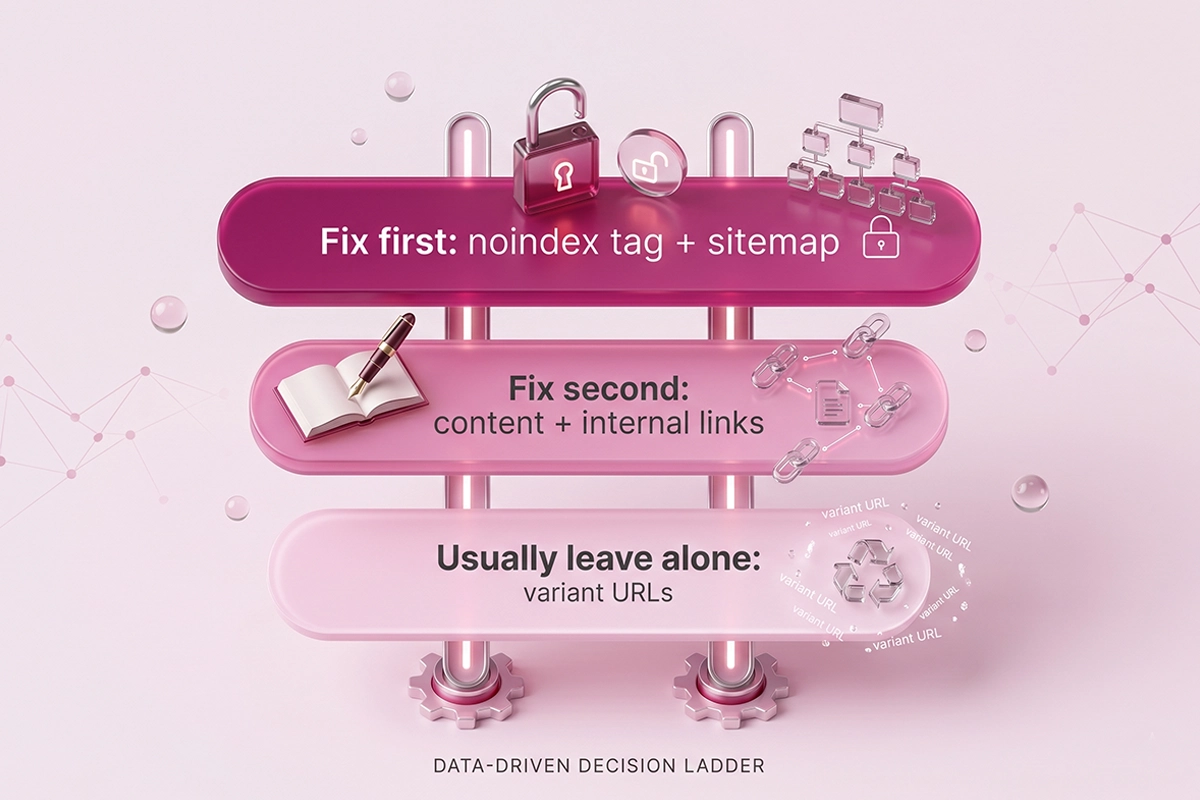
You don't fix all five at once. You confirm the cause in Search Console, then work in the order that clears the most pages for the least effort. Here is how I prioritize it for a new store.
| Cause | Search Console status to look for | Priority |
|---|---|---|
| Noindex tag | Excluded by noindex tag | First. A hard block and a fast fix. |
| Sitemap not submitted | Missing or failing in the Sitemaps report | First. One submission, big payoff. |
| Thin or duplicate content | Crawled, currently not indexed | Second. Real work, biggest long-term win. |
| Weak internal links | Discovered, currently not indexed on orphan pages | Second. Cheap and compounding. |
| Variant or collection duplicates | Alternate page with proper canonical tag | Last, and usually no action needed. |
Start with the hard blocks, the noindex tag and the missing sitemap, because they stop indexing completely and take minutes to fix. Then move to content and internal links, which are slower but do the real work. Leave the variant URLs alone unless you have confirmed the canonical is pointing the wrong way.
If you'd rather have someone run this audit for you, that is a large part of what an SEO project covers. A full Shopify SEO audit walks the same statuses across your whole store, not just the handful of pages you noticed were missing.
What to expect after you fix it
Indexing is not instant, so set your expectations before you start refreshing Search Console every hour.
After you remove a noindex tag and request indexing, a single important page can be picked up within a few days. After you submit a sitemap or improve content and internal links, full coverage across a new store usually takes a few weeks, and sometimes longer for lower-priority pages. That is normal, and it does not mean the fix failed.
Two honest takeaways. First, if your Shopify pages are not indexed, the cause is almost always one of these five, and most are simple once you have confirmed which one you are dealing with. Second, the confirming is the important part. Guessing leads to fixing things that were never broken, like the variant URLs Shopify was handling correctly all along.
If you work through the fix order and your pages are still missing after a month, the issue is usually content quality or a deeper technical conflict, and that is the point where most store owners either learn it the hard way or hand it off. Either way, you now know how to read the report instead of staring at it.
Want someone to find the cause for you?
The Studio Niza Shopify SEO service includes an indexing audit. I check every status in Search Console, find what is blocking your products and collections, and fix it in priority order. SEO projects start at $499.
See SEO services & pricing →Or email contact@studioniza.com if you have a specific question about your store. I read every one.
Frequently asked questions
If you're still unsure after reading these, just send the question.
How long does it take for a new Shopify store to get indexed by Google? +
Discovery usually happens within a few weeks of submitting your sitemap, but full indexing of every product and collection on a new store can take a month or more. Young sites get crawled cautiously, so partial indexing early on is normal and not a sign that something is broken.
Why is my Shopify store not showing up on Google at all? +
The most common reason a brand-new store shows nothing in Google is that the password page is still on, or the domain is so new that Google has no crawl history for it yet. Confirm your store is publicly visible, submit your sitemap in Search Console, and give it a few weeks.
Should I use the Request indexing button for every Shopify page? +
No. Request indexing is best saved for a specific page you just fixed, such as one where you removed a noindex tag. It does not override Google's quality or canonical decisions, so using it on every URL will not force pages in and mostly wastes your time.
Does Shopify automatically submit my sitemap to Google? +
Shopify generates a sitemap automatically at yourstore.com/sitemap.xml and keeps it updated, but it does not submit it to Google for you. You still need to add and submit it in Google Search Console so Google knows where to look.
Can Shopify apps cause indexing problems? +
Yes. Some filter, search, and SEO apps can add a noindex tag to collection pages or interfere with how your sitemap renders. If pages stopped being indexed right after you installed an app, disable it temporarily and recheck the page in Search Console.
Will the ?variant= URLs hurt my Shopify SEO? +
Usually not. Shopify adds a canonical tag that points every variant URL back to the main product URL, so Google indexes one clean version. It only becomes a problem if a theme or app overrides that canonical, which is worth checking but rare on new stores.