
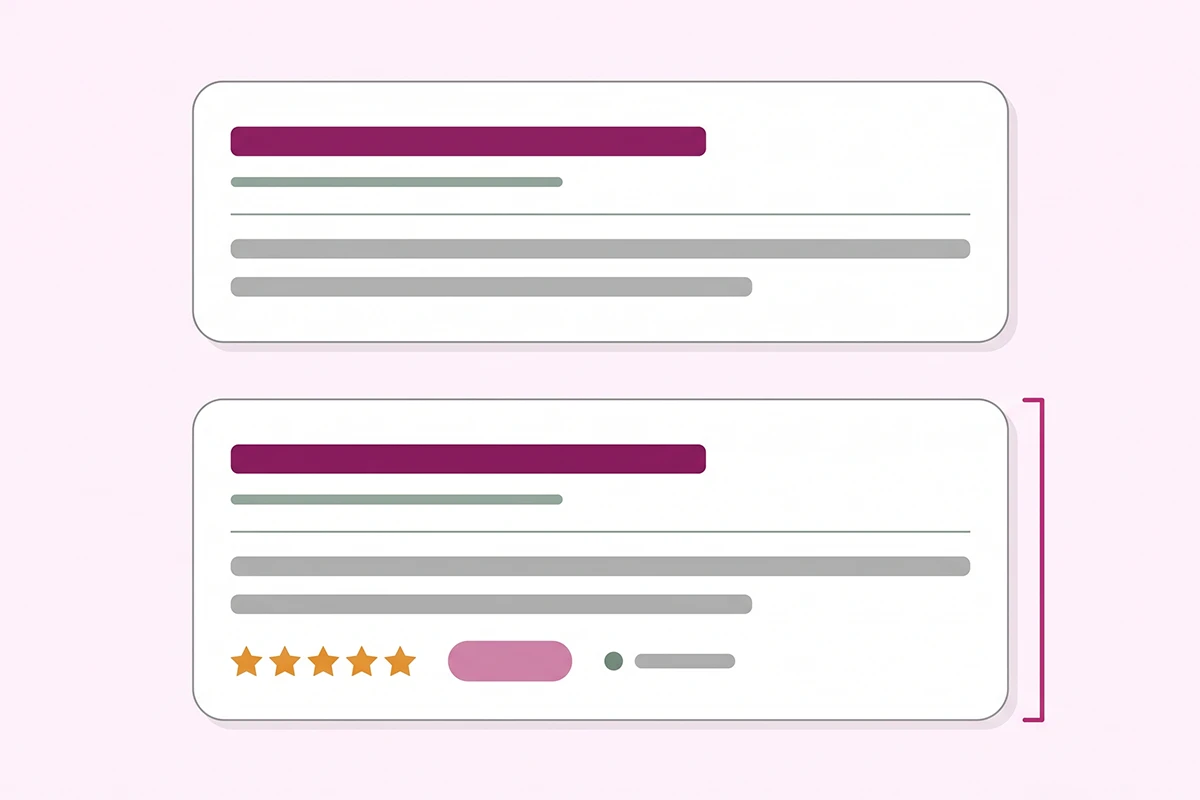
Search your own best-selling product on Google, then search a competitor's version of the same thing. There is a decent chance theirs carries a price, a row of orange stars, and the words "In stock" while yours is two plain blue lines and a snippet of your product description.
That difference is almost never about rankings. Both listings can sit in the same position. One of them is just giving Google more to work with.
The thing doing that work is Shopify product schema: a block of machine-readable code on your product pages that tells Google the price, the stock status, the star rating, and how long shipping takes. It changes nothing about what a shopper sees on your store. It changes what Google is allowed to show about your store in search results.
Here is the part most new Shopify owners do not know: you almost certainly already have product schema. Your theme writes it for you. It covers roughly half of what Google asks for, and the half it skips happens to include the star ratings everybody wants.
This post covers what product schema controls, what your theme already generates and what it leaves out, how to check any product page in Google's own tester in about two minutes, why your stars are not showing, and the one thing that quietly breaks schema on stores that have installed too many apps. It also covers when to leave the whole thing alone, which is more often than the internet suggests.
What product schema actually controls in Google
Structured data is a standard format for describing what is on a page. Product schema is the version of it that describes a thing you sell. It lives in a script tag in your page code, invisible to shoppers, and it uses vocabulary from schema.org that Google, Bing, and AI search engines all read.
What it can control in a search result: the price, whether the item is in stock, the star rating and review count, the shipping cost and delivery estimate, the return window, and the condition of the item.
None of that appears because you wrote it in your product description. It appears because a machine could read it without guessing.
Product snippets and merchant listings are two different things
Google splits product structured data into two classes, and the distinction matters because they have different requirements. Google's documentation describes product snippets as markup for pages carrying product information where a shopper cannot buy directly, such as an editorial review page. Merchant listings are for pages where the shopper can purchase from you.
Your Shopify product pages are merchant listings. That is the better category to be in: merchant listing markup opens the door to the shopping knowledge panel, popular product results, Google Images, and Google Lens, on top of the standard snippet.
Since 2022, Google has let stores qualify for merchant listing experiences from on-page structured data alone, with no Merchant Center account required. If you do have one, running both together is stronger, because Google cross-checks the two against each other. If you have not set that side up yet, the walkthrough for free listings in Merchant Center covers it.
What your Shopify theme already generates
Modern Shopify themes produce product schema automatically through a Liquid filter called structured_data. In your product template it is a single line, and it writes out a complete JSON-LD block for every product without you doing anything.
According to Shopify's developer documentation, the output includes the product name, brand, category, description, image, page URL, and a nested offer carrying price, currency, availability, and the variant URL.
That is a real foundation. It also stops there. Shopify's own guide to ecommerce schema confirms that fields like GTIN, SKU, reviews, shipping rates, and return policy typically need to be added separately through theme code or an app.
One thing worth checking before you blame the code: the description and category fields come out empty if you left them empty in your Shopify admin. That is a data problem, not a schema problem, and it takes five minutes to fix in the product editor.
Product or ProductGroup: the variant difference
The filter outputs a Product when the item has no variants and a ProductGroup when it has one or more. Both are supported by Google, so if your test result comes back saying ProductGroup instead of Product, nothing is broken. That is the correct type for a product with size or color options, and it is how Google understands that six listings are six versions of one thing rather than six separate products.
How to check your own product page in two minutes
Stop guessing and go look. Google gives away the tool that renders exactly what it sees.
Open the Rich Results Test, paste the full URL of one product page, and press Test URL. In under a minute you get a list of the structured data items Google detected on that page, with each one expandable to show every field and its value.
Check four pages, not one: your best seller, a product with variants, a product that is currently out of stock, and a product with reviews. Those four cover most of the ways product schema goes sideways on a Shopify store.
Reading the result without panicking
The tester separates errors from warnings, and the difference is the whole game. Errors mean the page is not eligible for that rich result. Warnings mean a recommended field is missing but you still qualify.
"Missing field review" and "missing field aggregateRating" are warnings. They show up on nearly every new Shopify store and they are not urgent unless you actually have reviews to show.
The one that sends people into a spiral is a missing price error appearing across the entire catalog while prices are plainly visible on every page. On Shopify stores that almost always traces back to a currency format setting in admin or leftover microdata baked into an older theme, sitting alongside the newer JSON-LD block and failing on its own.
For a catalog-wide view rather than one page at a time, Search Console carries a Merchant listings report and a Product snippets report. Those show what Google actually recorded after crawling, which can lag your live page by days. The tester shows the page as it is right now. Use both.
The fields that decide what shows up
Here is the practical map of Shopify product schema fields, what each one does in search, and whether your theme hands it to you.
| Field | What it does in search | Required? | In Shopify's default output? |
|---|---|---|---|
| name | Identifies the product | Required | Yes |
| image | Feeds image results and shopping surfaces | Required | Yes |
| offers | Container for everything purchase-related | Required | Yes |
| price, priceCurrency | Shows the price in the result | Required, and above zero | Yes |
| availability | Shows "In stock" or "Out of stock" | Recommended | Yes |
| aggregateRating | Shows the star rating and review count | Recommended | No, comes from your reviews app |
| itemCondition | Flags new, used, or refurbished | Recommended | No |
| shippingDetails | Shows shipping cost and delivery window | Recommended | No |
| hasMerchantReturnPolicy | Shows the return window and fees | Recommended | No |
| sku, gtin | Helps Google match your product to the same item elsewhere | Recommended | No |
| category | Classifies the product type | Recommended | Yes, but empty if unset in admin |
| priceValidUntil | Marks when a sale price ends | Recommended | No |
Required, recommended, and what that really means
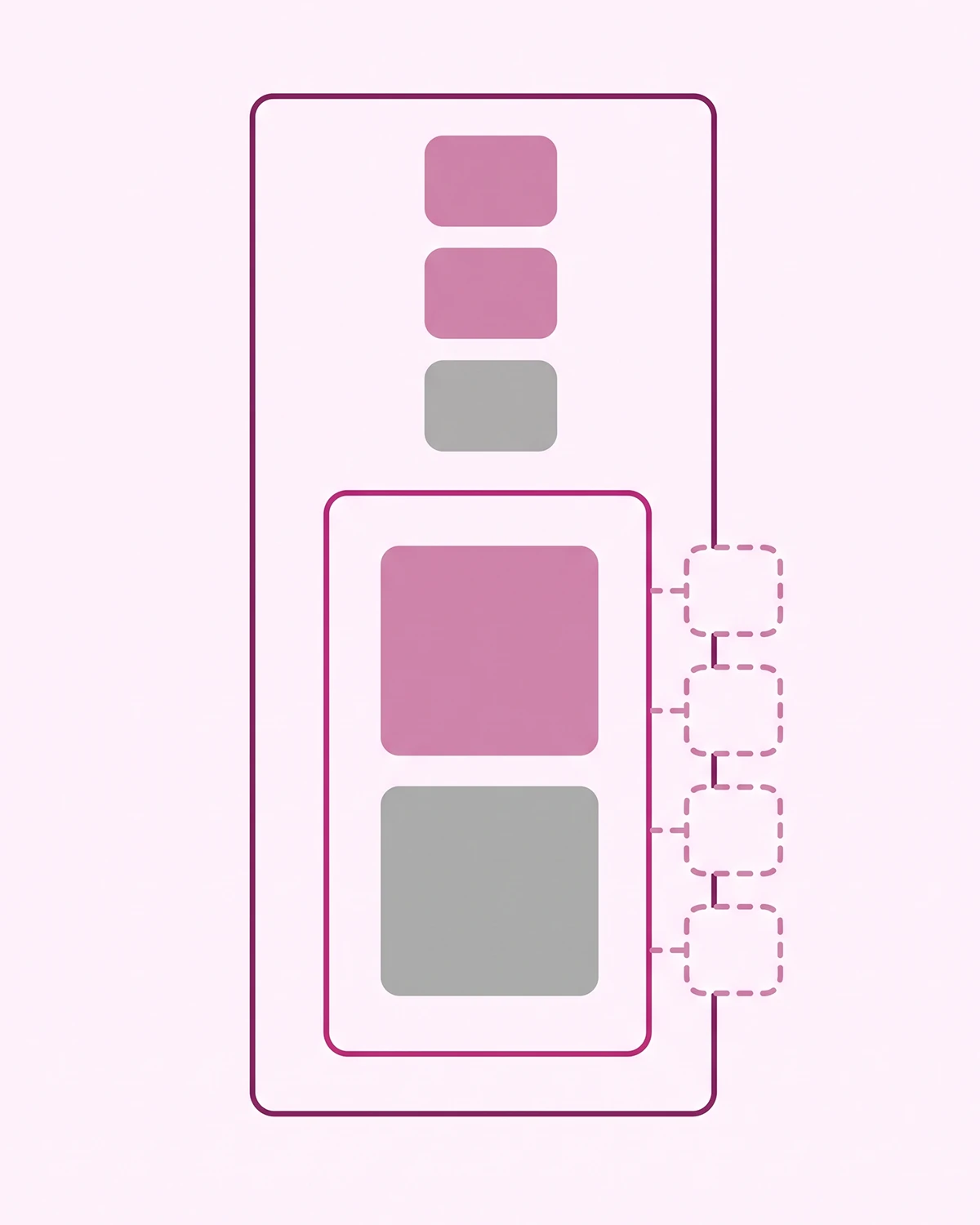
Only four things are strictly required for a merchant listing: name, image, a nested offer, and a price with its currency. Google's merchant listing documentation also notes that the price has to be greater than zero, which is stricter than the rule for plain product snippets.
Everything else is recommended. In practice, recommended is not the same as optional. Availability is what produces the stock status line. aggregateRating is what produces the stars. Skipping those means skipping the two things that visibly change a listing.
For shipping and returns, Google prefers you declare the policy once at the business level rather than repeating it on every product. That belongs in your Organization schema on a single policy page, with product-level overrides only where a specific item behaves differently.
One more detail if you run a Merchant Center feed: Google's Merchant Center help lists price, priceCurrency, availability, and condition as the on-page values it needs for automatic item updates. If your feed says one price and your page says another, that mismatch is the thing to fix first.
Why your stars aren't showing
Because aggregateRating is not in your schema, and Shopify does not put it there. That is the answer for the overwhelming majority of stores asking this question.
Your theme writes the product block. Your reviews app writes the rating. If the reviews app is not adding it, no amount of reviews on your page will produce stars in Google, because Google is reading the code rather than counting the review cards.
The three conditions Google needs
First, at least one published review on that specific product. Not on the store. On the product.
Second, the review widget has to be rendering on the product page itself. Google requires that marked-up ratings be visible to the shopper on the same page, so a rating that exists only in code is a policy problem rather than a shortcut.
Third, the app's rich snippet setting has to be switched on. Every major reviews app has this toggle, usually filed under SEO or Google integration. Judge.me turns it on by default and needs the widget installed on the product page plus one published review.
Worth knowing: review snippets are not eligible on your homepage, your collection pages, or an all-reviews page. Google restricts them to pages about one specific item, which is why a store with 4,000 reviews still shows no stars anywhere except product URLs.
Do not hand-code an aggregateRating with numbers you typed yourself. Google's review snippet rules require the ratings to be genuine and visible, and undisclosed incentivized reviews fall on the wrong side of the policy line. If you need a longer walkthrough of the full path, I wrote one on how star ratings actually reach Google.
The free tier of Judge.me outputs aggregateRating, so no store needs to pay for a schema app purely to get stars. If you are still choosing an app, the comparison of the four main reviews apps covers what each one does with schema.
The duplicate schema problem
This is the failure mode nobody warns new store owners about, and it gets worse the more apps you install.
Your theme writes a Product block. Your reviews app writes another one to carry the rating. An SEO app writes a third because adding schema is on its feature list. Now one page declares three versions of the same product, and they disagree about price or availability because they were generated at different moments.
Google does not average them. It picks one or ignores the ambiguity, and either way you lose control of what shows.
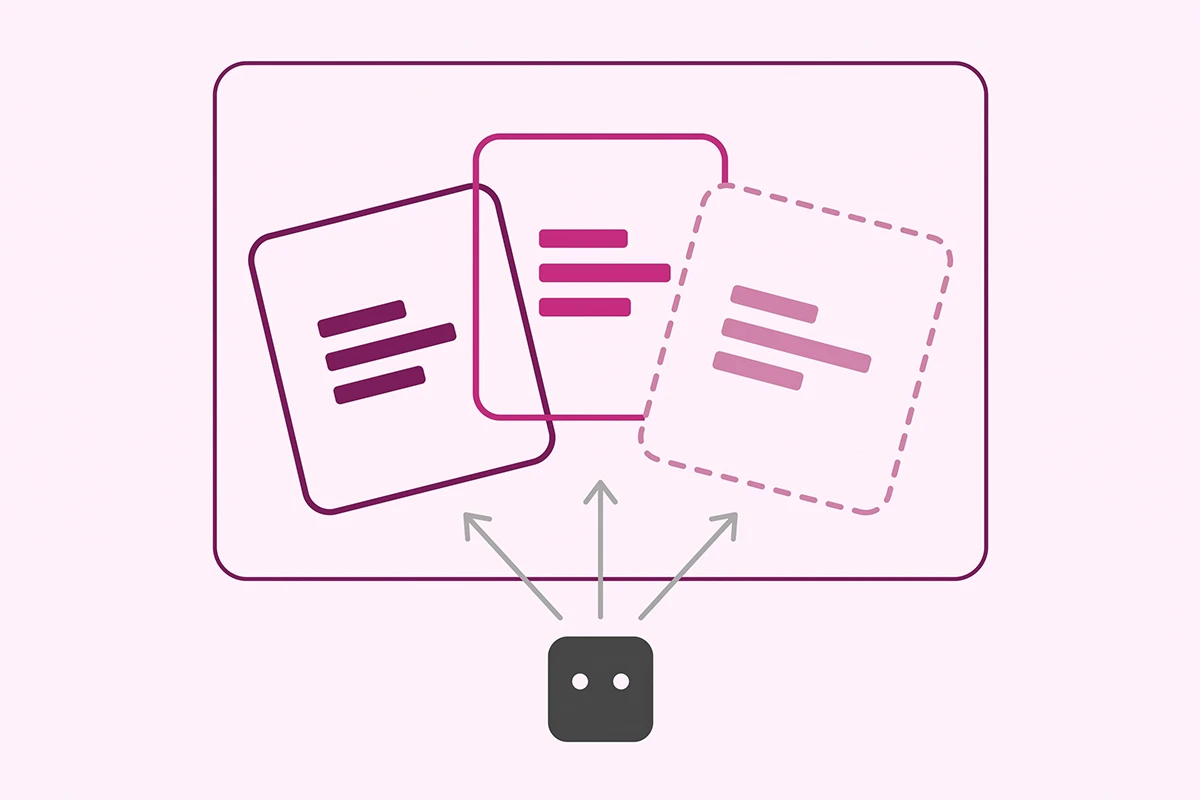
To find it, run the Rich Results Test and look at the detected items list. Two or three Product entries on a single URL is the tell. You can also view the page source and search for application/ld+json to count the script blocks yourself.
The fix is to pick one source of truth. Usually that means keeping your theme's block and letting the reviews app contribute only the rating. Well-built reviews apps use a matching identifier so their rating merges into the existing product node instead of creating a rival one. If an SEO app is duplicating the entire product node, turn its product schema feature off.
One warning if you go into theme code: edits to your product template do not survive a theme update. Write down what you changed and where, because the day you update the theme is the day the schema quietly reverts.
When to fix it and when to leave your theme alone
Most stores reading this need to change less than they think.
Leave it alone if you are on a current theme, the Rich Results Test shows your product pages as eligible with only warnings, and you do not have reviews yet. Adding shipping and return markup to a store with no reviews and 20 products is effort spent on the wrong end of the problem.
Fix first: the stars. Install a reviews app, get the widget onto the product template, turn on the rich snippet setting. This is the highest visible return of anything in this post and it is usually a toggle, not code.
Fix second: duplicate Product blocks, if the tester found any. Conflicting data is worse than missing data.
Fix third: the empty fields in your Shopify admin. Product descriptions, product category, and vendor all flow into the schema automatically once they exist.
Fix later: shipping details, return policy, GTIN and SKU. These matter most when you are running a Merchant Center feed or competing in a category where delivery speed is the deciding factor.
Skip: paying for a schema app when your theme and reviews app already cover the ground. I would rather tell you that than sell you a fix you do not need. Plenty of budget SEO packages "add schema" by installing an app that duplicates what was already working, then count it as a deliverable.
If you are looking at other structured data worth adding after this, FAQ schema is the next one I would reach for, mostly for how AI search engines use it.
Wrapping up
Three things to carry out of this. Your Shopify theme already writes product schema covering name, image, price, availability, and brand, so you are not starting from zero. The gap that matters most is aggregateRating, which comes from your reviews app rather than your theme, and it is the reason your competitor has stars and you do not. And too much schema is a real problem, not a bonus, because three conflicting Product blocks are worse than one honest one.
The work that is left is genuinely yours. Google's tester will tell you what is on the page, but it cannot tell you whether the price it found is the price you meant, whether the review widget is on every product template or just the one you checked, or whether an app you installed last March is still writing a Product block you forgot about.
Set aside twenty minutes, test four product pages, and write down what you find. Most stores discover one toggle to flip and one app to quiet down.
And keep the expectation honest: schema makes you eligible for enhanced results. It does not guarantee them. Google decides per query whether to show the price, the stars, or nothing at all, and it can change its mind. What structured data does reliably is remove the guesswork, which matters more every year as AI search engines read pages the same way crawlers do.
Want someone to check the schema for you?
Studio Niza's SEO work includes real schema markup on product, collection, and content pages, not a template dropped into your theme. The Starter tier is $499 one-time and covers 25 pages.
See pricing & services →Or email contact@studioniza.com if you have a specific question about your store. I read every one.
Frequently asked questions
If you're still unsure after reading these, just send the question.
Does Shopify add product schema automatically? +
Yes. Modern Shopify themes generate product schema through the structured_data Liquid filter, which writes a JSON-LD block into every product page. It covers name, brand, image, description, category, price, availability, and URL. Star ratings, shipping details, and return policy are not included and have to come from elsewhere.
Do I need a schema app for my Shopify store? +
Usually not. Between your theme's built-in output and a reviews app that adds aggregateRating, most small stores already have working Shopify product schema. A dedicated schema app earns its place when you need shipping details, return policy, or GTIN data on every product and you do not want to touch theme code.
Why does Google Search Console say a field is missing on my products? +
Search Console separates errors from warnings. Missing aggregateRating or review is a warning, not an error, and your page is still eligible. A missing price error on hundreds of products where prices are clearly visible usually traces back to a currency formatting setting or leftover microdata in an older theme, not to the JSON-LD block itself.
How long does it take for rich results to appear after fixing product schema? +
Google has to recrawl the page first, which usually takes a few days to a few weeks depending on how often it visits your store. After that, eligibility is not the same as display. Google decides per query whether to show the enhanced result.
Can I add product schema to Shopify collection pages? +
No. Google only supports product rich results on pages focused on a single product or its variants, so a collection page listing twenty items does not qualify. Review snippets have the same restriction, which is why your homepage and reviews page never show stars.
Does Shopify product schema help with AI search engines like ChatGPT and Perplexity? +
It gives AI engines clean, unambiguous facts about price, availability, and ratings instead of making them parse your page layout. That helps, but structured data alone is not a full generative engine optimization strategy. Content that answers real buyer questions still does most of the work.
Is a GTIN required for Shopify product schema? +
No. GTIN is a recommended property, not a required one, and plenty of small brands making their own products do not have one. It matters more if you also run a Google Merchant Center feed, where product identifiers help Google match your listing to the same product elsewhere.
What is the difference between product snippets and merchant listings? +
Product snippets apply to any page carrying product information, including editorial review pages where nobody can buy anything. Merchant listings apply to pages where a shopper can purchase directly from you, and they open up more places in Google such as the shopping knowledge panel and Google Images. Meeting the merchant listing requirements generally makes you eligible for both.