You've read a Shopify SEO checklist before. Maybe three. Finding one was never the problem. The problem is that a checklist you read once is just a blog post, and a blog post can't tell you which product pages you finished, which ones you skipped, or when you last checked any of it.
This page is a Shopify SEO checklist template you can actually keep. There's a copy-ready table that pastes straight into Google Sheets or Excel, a printable one-page version, and free downloadable spreadsheet and PDF files. No email gate. No opt-in form. The files are linked below and they're yours.
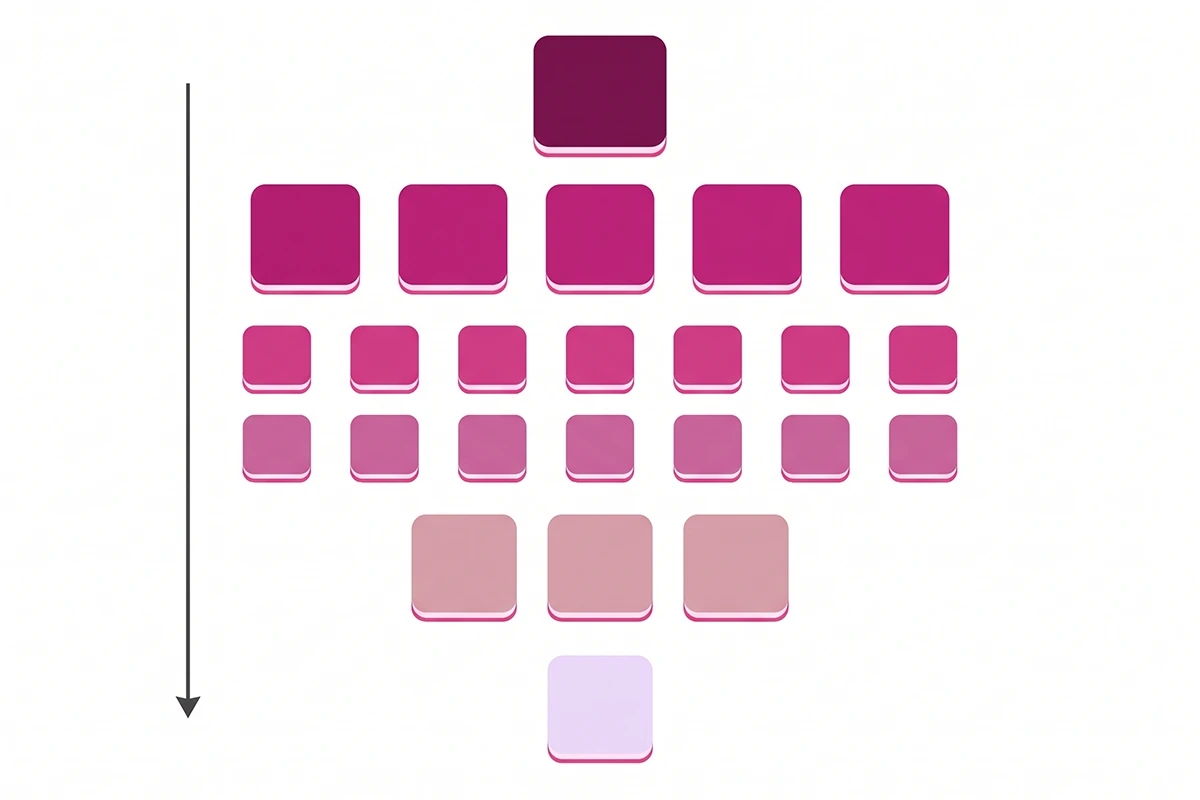
The template tracks the same 25 pages as the full 25-page Shopify SEO checklist: 1 homepage, 5 collection pages, 15 product pages, 3 policy pages, and 1 blog index. That post explains what to do on each page and why the order matters. This one gives you the tracking layer, so the work gets finished and re-checked instead of read and forgotten.
Why you need a checklist template, not another checklist article
Most Shopify SEO checklists are articles. Some are very good ones. Shopify's own SEO checklist covers 50 solid tips, but it's written for every website on the internet, and the downloadable version asks for your email first. Most of the other "free checklist" results are the same: a form, a gated PDF, or a paid file on a marketplace.
The bigger issue isn't the gate. It's that none of them track anything. In the Shopify community forums, the same pattern repeats: an owner asks where to start, gets handed a 50-item list, fixes three things in one motivated afternoon, and stops. Six months later they can't remember what they did.
The flagship checklist names the exact failure point: writing 25 unique meta descriptions. The first three are easy. The 23rd is brutal. Without a status column, you can't even see that you stalled at product page 9. You just have a vague feeling that you "did SEO once."
A template fixes that by being an artifact instead of advice. It has rows, a status for each row, and a date. That's the whole trick, and it's the part almost every checklist skips.
What's inside the Shopify SEO checklist template
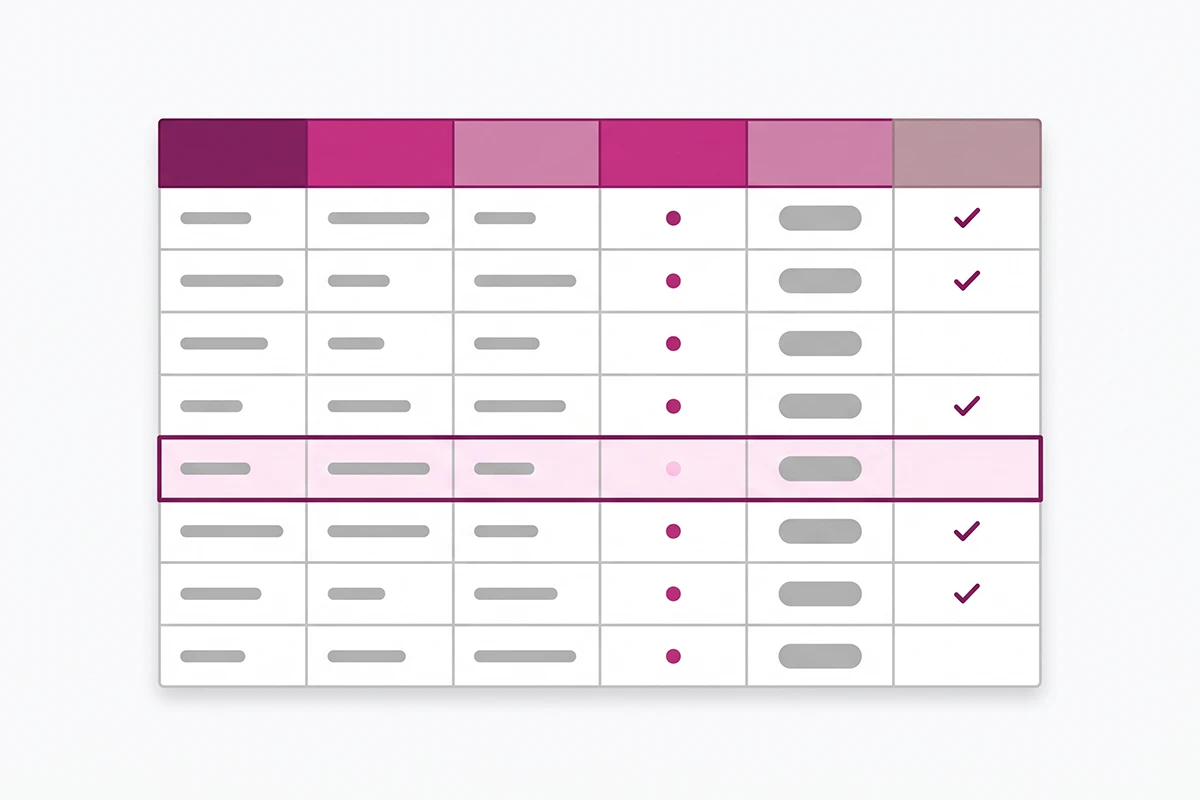
The template is one sheet with six working columns, plus a row number. Here's what each one is for.
Page names the row: your homepage, a specific collection, a specific product. When you copy the template into a spreadsheet, replace the generic labels like "Product page 3" with the actual product names.
What to optimize is the short task summary for that page type. The task key further down defines what "Done" actually means for each one.
Priority runs 1 to 5 and matches the order from the flagship post: homepage first, then collections, then products, then policy pages, then the blog index. Work top to bottom. Priority is what turns a pile of tasks into a plan.
Status has exactly three values: Not started, In progress, Done. Three is enough. More granular statuses feel productive and get abandoned by week two.
Last checked is the column most owners skip, and it's the one that makes this a maintenance system instead of a one-time cleanup. A page marked Done in May with no date is a page you'll re-do from scratch in November because you can't trust your own memory.
Notes holds the keyword you picked for the page and anything odd you found. Future you will thank present you.
One honest distinction before you download anything. A template for tracking your work is a tool. A template for writing your meta descriptions is what most cheap SEO services sell: the same sentence reworded across two hundred stores, which Google reads as the duplicate content it is. This template gives you the tracking grid. The words on each page still have to be yours.
Both files are free, no signup, already formatted in Studio Niza's layout with the status dropdowns built in:
Download the spreadsheet: studio-niza-shopify-seo-checklist-template.xlsx (works in Excel and imports cleanly into Google Sheets)
Download the printable PDF: studio-niza-shopify-seo-checklist-template.pdf (one-page checklist, prints on A4 or letter)
The template: all 25 pages in spreadsheet form
Before the 25 pages, three setup rows. These come first because nothing else matters if Google can't find or index the store. Search Console in particular is non-negotiable: it's the free tool every later row reports into.
| # | Setup task | Status | Last checked | Notes |
|---|---|---|---|---|
| S1 | Connect Google Search Console and submit your sitemap (Shopify generates it at yourstore.com/sitemap.xml) | Not started | ||
| S2 | Confirm you are on a paid plan and your custom domain is connected (trial stores are not indexed) | Not started | ||
| S3 | Pick one primary keyword per page type using autocomplete and People Also Ask | Not started |
Then the 25 pages themselves, in priority order. The tiers mirror the flagship checklist exactly: 1 homepage, 5 collections, 15 products, 3 policy pages, 1 blog index.
| # | Page | What to optimize | Priority | Status | Last checked | Notes |
|---|---|---|---|---|---|---|
| 1 | Homepage | Title under 60 chars, meta under 155, real body copy Google can index | 1 | Not started | ||
| 2 | Collection page 1 | Collection tasks (see task key) | 2 | Not started | ||
| 3 | Collection page 2 | Collection tasks (see task key) | 2 | Not started | ||
| 4 | Collection page 3 | Collection tasks (see task key) | 2 | Not started | ||
| 5 | Collection page 4 | Collection tasks (see task key) | 2 | Not started | ||
| 6 | Collection page 5 | Collection tasks (see task key) | 2 | Not started | ||
| 7 | Product page 1 | Product tasks (see task key) | 3 | Not started | ||
| 8 | Product page 2 | Product tasks (see task key) | 3 | Not started | ||
| 9 | Product page 3 | Product tasks (see task key) | 3 | Not started | ||
| 10 | Product page 4 | Product tasks (see task key) | 3 | Not started | ||
| 11 | Product page 5 | Product tasks (see task key) | 3 | Not started | ||
| 12 | Product page 6 | Product tasks (see task key) | 3 | Not started | ||
| 13 | Product page 7 | Product tasks (see task key) | 3 | Not started | ||
| 14 | Product page 8 | Product tasks (see task key) | 3 | Not started | ||
| 15 | Product page 9 | Product tasks (see task key) | 3 | Not started | ||
| 16 | Product page 10 | Product tasks (see task key) | 3 | Not started | ||
| 17 | Product page 11 | Product tasks (see task key) | 3 | Not started | ||
| 18 | Product page 12 | Product tasks (see task key) | 3 | Not started | ||
| 19 | Product page 13 | Product tasks (see task key) | 3 | Not started | ||
| 20 | Product page 14 | Product tasks (see task key) | 3 | Not started | ||
| 21 | Product page 15 | Product tasks (see task key) | 3 | Not started | ||
| 22 | About page | Policy and trust tasks (see task key) | 4 | Not started | ||
| 23 | Contact page | Policy and trust tasks (see task key) | 4 | Not started | ||
| 24 | Shipping and Returns page | Policy and trust tasks (see task key) | 4 | Not started | ||
| 25 | Blog index | Title, meta description, at least one real post live | 5 | Not started |
Pick your 5 collections and 15 products by traffic and revenue, not by personal attachment. If the store is too new for traffic data, pick the products you'd want a stranger to land on first.
The task key: what "Done" means for each page type
A status column only works if "Done" is defined. This key is the definition, condensed from the full checklist post. All of it happens in Shopify's built-in search engine listing fields. No paid app required.
| Page type | What "Done" means |
|---|---|
| Homepage | Page title under 60 characters with one clear keyword and your brand name. Meta description under 155 characters. A short paragraph of indexable body copy, because image-only homepages give Google nothing to read. |
| Collection page | Unique title tag with the category keyword. 150 to 300 words of original description, split above and below the product grid. Meta under 155 characters. One or two internal links to related collections. The full walkthrough is in how to optimize a Shopify collection page. |
| Product page | H1 under 70 characters, meta title under 60, meta description 150 to 160, a unique 150 to 300 word description (never the manufacturer paste), descriptive alt text, and a short keyword-led URL. Alt text and image formats are covered in the product image SEO guide. |
| Policy and trust page | Real, plain-language content. The About page says who runs the store. The Contact page has a working email or form. Shipping and Returns states the actual policy in full sentences. |
| Blog index | Title and meta description set, and at least one genuinely useful post published. One good post a month compounds. |
How do you copy this into Google Sheets or Excel?
The fastest route is the download above, because the formatting and dropdowns are already done. But if you'd rather build it yourself, the tables on this page paste directly into a spreadsheet as real cells. Here's the five-minute version.
In Google Sheets: open a blank sheet, then select the master table above from the first header cell to the last Notes cell, copy, and paste into cell A1. The rows and columns land as cells, not as one text blob. Repeat for the setup table on a second tab if you want it separate.
Then three quick upgrades. Freeze the header row (View, then Freeze, then 1 row). Add the status dropdown: select the Status column, open Data, then Data validation, and add a dropdown with the three values Not started, In progress, and Done. Finally, add conditional formatting so rows turn a soft green when Status equals Done. Now progress is visible at a glance.
In Excel: the same paste works. The dropdown lives under Data, then Data Validation, then List, with the three values comma-separated. Conditional formatting is on the Home tab.
Rename the generic rows to your real pages as you go. "Product page 7" tells you nothing in three months. "Linen tote, natural" does.
How do you make the printable one-page version?
The PDF download is already laid out as a one-page checklist with the same 25 rows, sized to print on A4 or US letter. Print it, put it somewhere you'll actually see it, and tick rows with a pen.
If you'd rather print from your own spreadsheet, use fit-to-width in the print settings and landscape orientation so all six columns survive on one sheet.
The paper version is deliberately low-tech. It exists because a checklist pinned next to your monitor gets worked through, and a browser tab gets closed. Use the paper for the first full pass, then move the record-keeping into the spreadsheet, where the dates live.
How to re-run the checklist every quarter
Optimized pages don't stay optimized. You add products, swap themes, rewrite descriptions at midnight, and quietly break things. Meanwhile the channel keeps mattering: in Similarweb's 2025 benchmark data, organic search carried around 23.6 percent of ecommerce site traffic, second only to direct, and Adobe measured AI-source traffic to US retail sites growing 393 percent year over year in early 2026. The pages in this template are exactly the pages both of those channels read.
How often should you re-check? Audit-frequency guidance generally lands at every six months for small static sites and quarterly or better for ecommerce stores that change regularly. A new Shopify store adding products is the second kind. Quarterly is your floor.
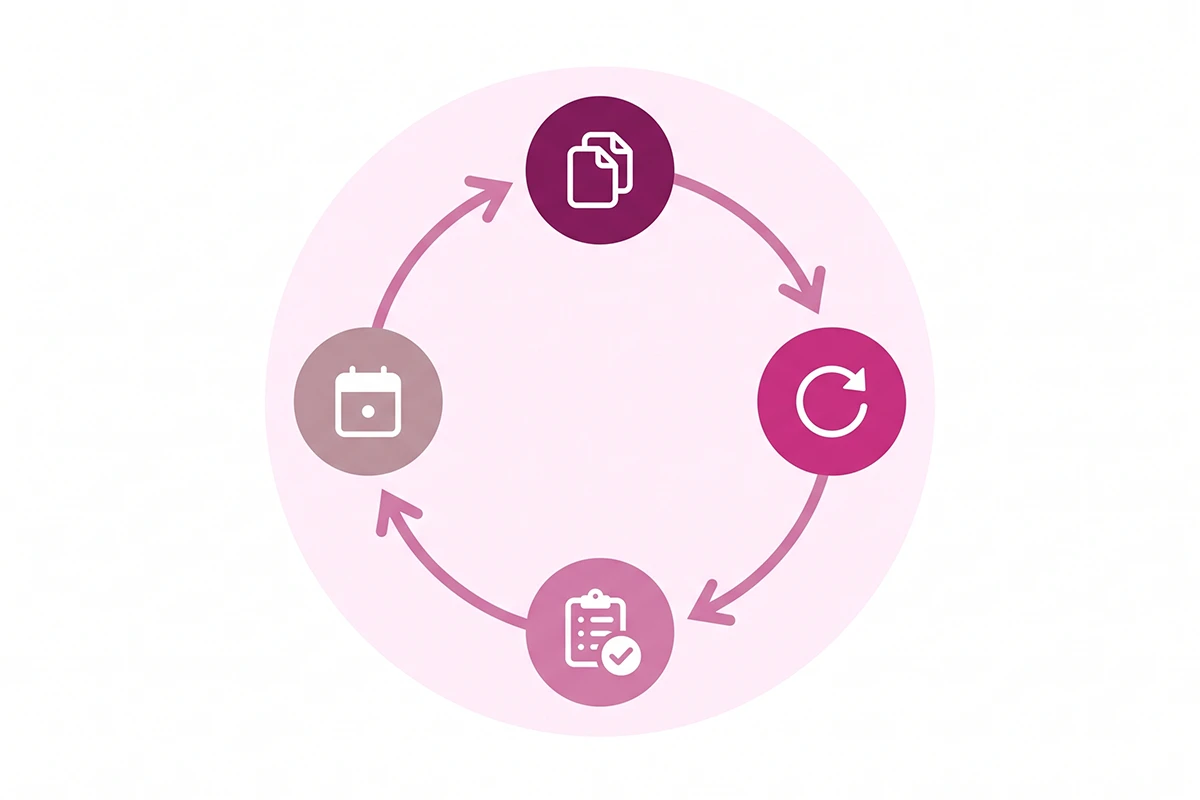
The good news: a re-run is not a redo. The first pass through this template is real work, weeks of it. The quarterly pass takes about 15 minutes plus whatever fixes it surfaces. Here's the loop.
First, duplicate the spreadsheet tab and name it for the quarter, so last quarter's record stays intact. Second, reset every Status to Not started. Third, walk the rows in priority order and spot-check each page: title still right, description still unique, nothing broken by a theme update. Fourth, log the date in Last checked as you go. Pages that are fine flip back to Done in seconds.
Two escalation paths. If the quarterly pass keeps surfacing the same problems, or traffic dropped and you don't know why, the problem is probably store-level, not page-level: that's when you run the 35-point Shopify SEO audit checklist instead. And if pages you've marked Done still aren't appearing in Google, work through the diagnostic walkthrough for pages that aren't getting indexed before touching the pages themselves.
Wrapping up
A Shopify SEO checklist template is a small thing that fixes a real failure mode: reading the advice, doing a third of it, and losing track. The version on this page tracks the same 25 pages as the full checklist, adds the three columns that matter (Priority, Status, Last checked), and comes as a copy-ready table, a formatted spreadsheet, and a printable PDF. None of it costs anything and none of it asks for your email.
The honest part: the template doesn't write your 25 meta descriptions, and the 23rd one will still be brutal. What it does is make sure you know you're on the 23rd, and that you finished the other 24, and when. That's more than most stores can say about their SEO.
Start with the setup rows, work the priority order, log your dates, and put a quarterly reminder in your calendar. If you get through one tier a week, the whole first pass is done in five weeks.
Want the checklist done for you instead?
The Studio Niza Starter SEO tier covers all 25 pages in this template: custom keyword research per page, real schema, image SEO, and indexing follow-up. One-time, starting at $499.
See pricing & services →Or email contact@studioniza.com if you have a specific question about your store. I read every one.
Frequently asked questions
If you're still unsure after reading these, just send the question.
Is there a free Shopify SEO checklist template I can copy into Google Sheets? +
Yes. The master table on this page pastes directly into Google Sheets or Excel as real cells, and there are free downloadable spreadsheet and PDF versions with the formatting already done. No email address or signup is required.
What columns should a Shopify SEO checklist spreadsheet have? +
Six columns cover it: Page, What to optimize, Priority, Status, Last checked, and Notes. Last checked is the column most owners skip, and it is the one that turns a checklist into a maintenance system. Without a date, you cannot tell finished work from stale work.
Is a PDF or a spreadsheet better for tracking Shopify SEO? +
Use both, for different jobs. The printable PDF works for the first pass because a sheet of paper next to your monitor is hard to ignore. The spreadsheet is better over time because it stores dates, notes, and one tab per quarter.
Can I use this Shopify SEO checklist template for a store that's a few years old? +
Yes. The 25-page priority logic holds at any store age. An older store should pull its top pages by impressions from Google Search Console and put those real pages in the collection and product rows instead of guessing.
Should I re-run the Shopify SEO checklist after a Google algorithm update? +
Yes. Run a pass within 2 to 4 weeks of a confirmed core update, on top of the quarterly schedule. Check Search Console first so you know whether anything actually moved before you start changing pages.
How is this template different from a full Shopify SEO audit? +
The template maintains the 25 pages that carry most of a small store's SEO weight. An audit is a wider diagnostic that checks store-level issues like indexing, duplicate content, and site speed. Run the template quarterly, and reach for the audit when something looks wrong.